- Made by AppCoda
- Contact us / Support
- Tweet this book
- Preface
- 1. The Development Tools, the Learning Approach, and the App Idea
- 2. Your First Taste of Swift with Playgrounds
- 3. Build Your First App in Swift and SwiftUI
- 4. Designing UI Using Stack Views
- 5. Introduction to Prototyping
- 6. Understanding List and ForEach
- 7. Customizing List Views
- 8. Displaying Confirmations and Handling List View Selection
- 9. Understanding Struct, Project Organization and Code Documentation
- 10. List Deletion, Swipe Actions, Context Menus and Activity Controller
- 11. Working with Navigation View
- 12. Detail View Enhancement, Custom Fonts and Navigation Bar Customization
- 13. Understanding Colors, Swift Extensions and Dynamic Type
- 14. Working with Maps
- 15. View Animations and Blur Effect
- 16. Working with Observable Objects and Combine
- 17. Working with Forms and Camera
- 18. Working with Core Data
- 19. Adding a Search Bar Using Searchable
- 20. Building Walkthrough Screens Using TabView
- 21. Working with Tab View and Tab Bar Customizations
- 22. Displaying Web Content with WKWebView and SFSafariViewController
- 23. Working with CloudKit
- 24. Localizing Your App to Support Multiple Languages
- 25. Deploying and Testing Your App on a Real iOS Device
- 26. Beta Testing with TestFlight and CloudKit Production Deployment
- 27. Submit Your App to App Store
- 28. Adopting Haptic Touch
- 29. Working with User Notifications
- 30. Appendix - Swift Basics
- Published with GitBook
Chapter 24
Localizing Your App to Support Multiple Languages

Good code is its own best documentation. As you're about to add a comment, ask yourself, "How can I improve the code so that this comment isn't needed?" Improve the code and then document it to make it even clearer.
- Steve McConnell
In this chapter, let's talk about localization. The iOS devices including iPhone and iPad are available globally. The App Store is available in more than 150 countries around the world. Your users are from different countries and speak different languages. To deliver a great user experience and reach a global audience, you definitely want to make your app available in multiple languages. The process of adapting an app to support a particular language is usually known as localization.
Xcode has the built-in support for localization. It's fairly easy for developers to localize an app through the localization feature and a few API calls.
You may have heard of the terms: localization and internationalization. You probably think that both terms refer to the process of translation; that's partially correct. In iOS development, internationalization is considered a milestone in building a localized app. Before your app can be adapted to different languages, you design and structure the app to be language and region independent. This process is known as internationalization. For instance, your app displays a price field. As you may know, some countries use a dot to indicate decimal place (e.g. $1000.50), while many other countries use a comma instead (e.g. $1000,50). The internationalization process involves designing the price field so that it can be adapted to different regions.
Localization is the process of adapting an internationalized app for different languages and regions. This involves translating static and visible text to a specific language and adding country-specific elements such as images, videos, and sounds.
In this chapter, we'll localize the FoodPin app into Chinese and German. However, don't expect me to translate all the text in the app - I just want to show you the overall process of localization using Xcode.
Internationalizing Your App
The first step in building a localized app is internationalization. In this section, we will modify the app so that it can be easily adapted to various languages.
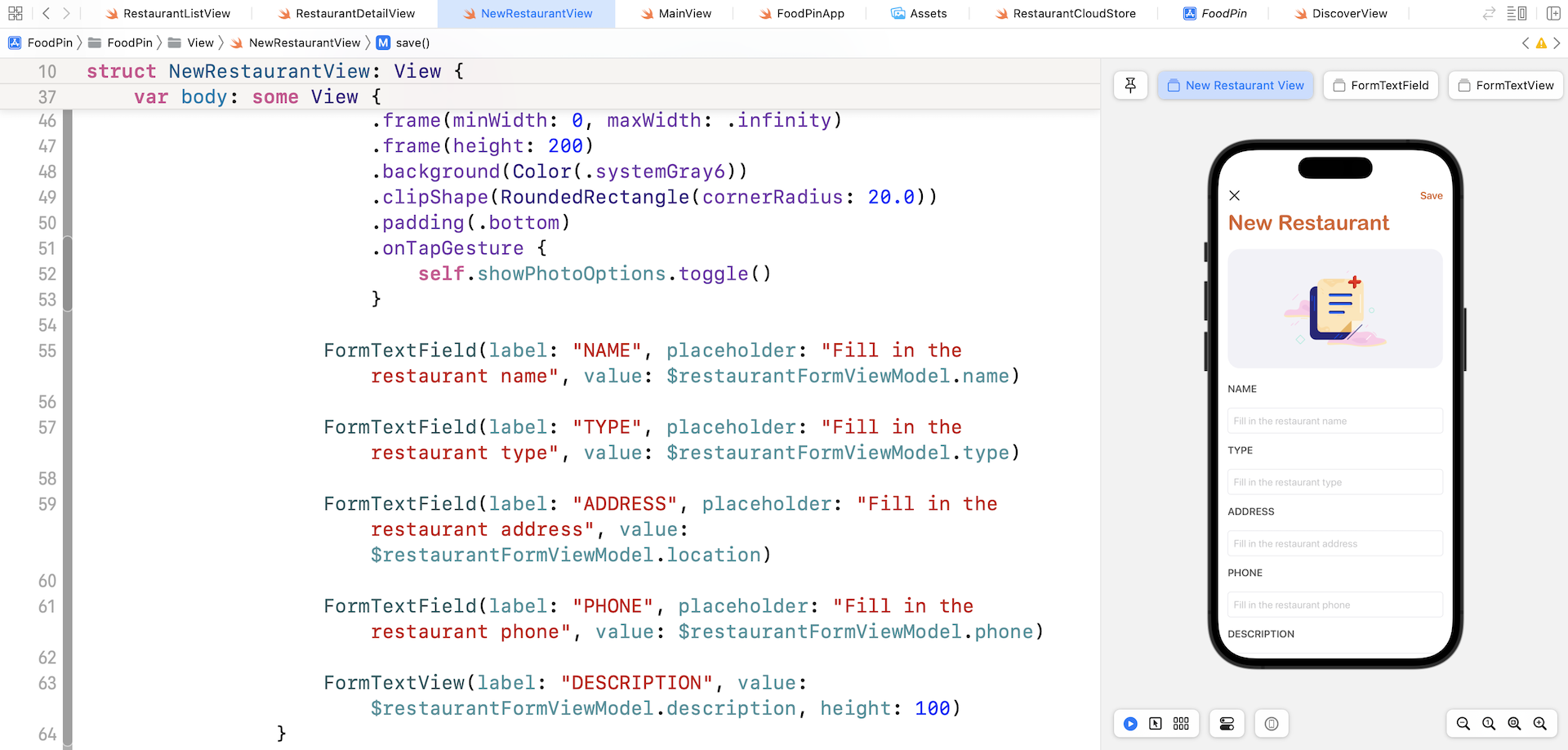
First, let's talk about the user-facing text of the app. There is tons of user-facing text in the source code. For convenience, we just define the strings in the source code. Figure 24-1 displays a few user-facing texts in the NewRestaurantView struct. When it comes to localization, these hardcoded strings are not localizable. We have to internationalize them first.
At the heart of string internationalization is the NSLocalizedString macro. The macro allows you to internationalize the user-facing strings with ease. It has two arguments:
key- the string to be localizedcomment- the string that is used to provide additional information for translation.
The macro returns a localized version of String. To internationalize the user-facing strings in your app, one thing that you need to do is wrap the existing strings with String(localized:).
Let's do some code changes so you can fully understand its usage. Take a look at the below code snippet from AboutView.swift:
Section {
    Link(destination: URL(string: WebLink.rateUs.rawValue)!, label: {
        Label("Rate us on App Store", image: "store")
            .foregroundColor(.primary)
    })

    Label("Tell us your feedback", image: "chat")
        .onTapGesture {
            link = .feedback
        }
}

Section {
    Label("Twitter", image: "twitter")
        .onTapGesture {
            link = .twitter
        }

    Label("Facebook", image: "facebook")
        .onTapGesture {
            link = .facebook
        }

    Label("Instagram", image: "instagram")
        .onTapGesture {
            link = .instagram
        }
}
The text is displayed in English and non-localizable. To make them language independent, you need to wrap the strings with String(localized:) like this:
Section {
    Link(destination: URL(string: WebLink.rateUs.rawValue)!, label: {
        Label(String(localized: "Rate us on App Store", comment: "Rate us on App Store"), image: "store")
            .foregroundColor(.primary)
    })

    Label(String(localized: "Tell us your feedback", comment: "Tell us your feedback"), image: "chat")
        .onTapGesture {
            link = .feedback
        }
}

Section {
    Label(String(localized: "Twitter", comment: "Twitter"), image: "twitter")
        .onTapGesture {
            link = .twitter
        }

    Label(String(localized: "Facebook", comment: "Facebook"), image: "facebook")
        .onTapGesture {
            link = .facebook
        }

    Label(String(localized: "Instagram", comment: "Instagram"), image: "instagram")
        .onTapGesture {
            link = .instagram
        }
}
The comment parameter is optional, but you can include additional information to tell the translators what the text is for.
Xcode actually stores the localized strings in the Localizable.strings files. Each language has its own Localizable.strings file. Say, your user's device is using German as the default language, String(localized:) looks up the German version of the Localizable.strings file and returns the string in German.
Tip: If you don't know how an app picks a language, it actually refers to the language settings of iOS (General > International > Language). An app refers to that setting and accesses the corresponding localized resources.That's all we need to do to internationalize the user-facing strings.
Exercise #1
Now choose a couple of Swift files in your FoodPin project (say, RestaurantListView.swift and NewRestaurantView.swift), modify all the user-facing text and wrap them with String(localized:).
Adding Your Supported Languages
For now, your app only supports English. To support other languages, select the FoodPin project in the project navigator. Then select Info and choose FoodPin under the Project section. To add another language, click the + button under the Localizations section. Pick the language you want to support. For this demo, let's choose Chinese (Traditional) (zh-Hant).
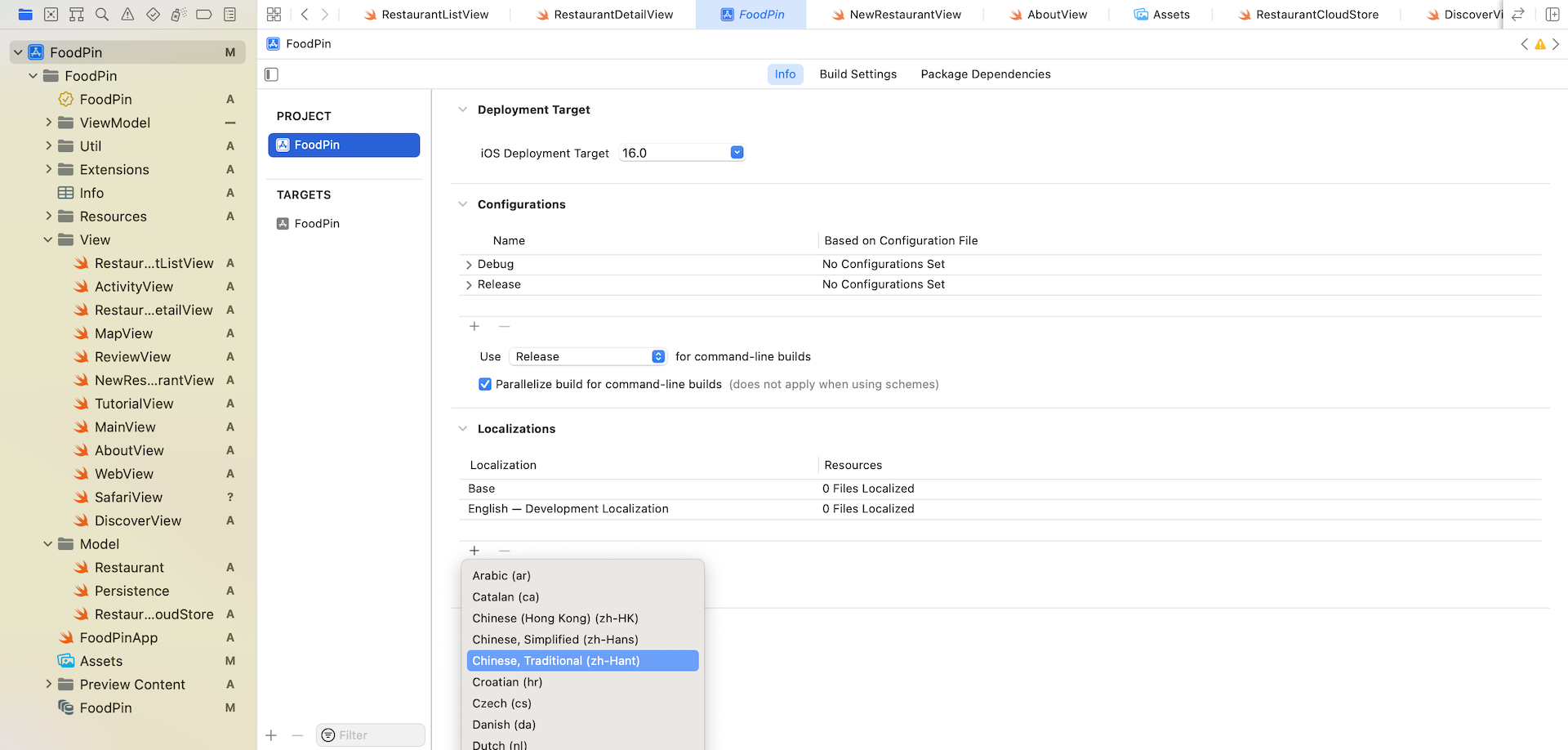
Once you chose the language, you will see the Chinese, Traditional language added to the Localizations section. You can continue to add more languages as long as you are going to support them. For this app, other than Chinese, we are going to support German. Therefore, repeat the procedures and add the German language.
Export for Localization
Xcode comes with an export feature to streamline the translation process. The export feature is intelligent enough to extract all localizable strings from your source code and Interface Builder/Storyboard files. The extracted strings will be stored in an XLIFF file. If you haven't heard of the term, XLIFF stands for XML Localization Interchange File, which is a well-known and globally-recognized file format for localization.
To use the export feature, select the FoodPin project in the project navigator. Then head up to the Xcode menu and select Product > Export For Localization. When prompted, choose a folder to save the localization files. Xcode then examines all your files and generates the what-so-called "Localization Catalog."
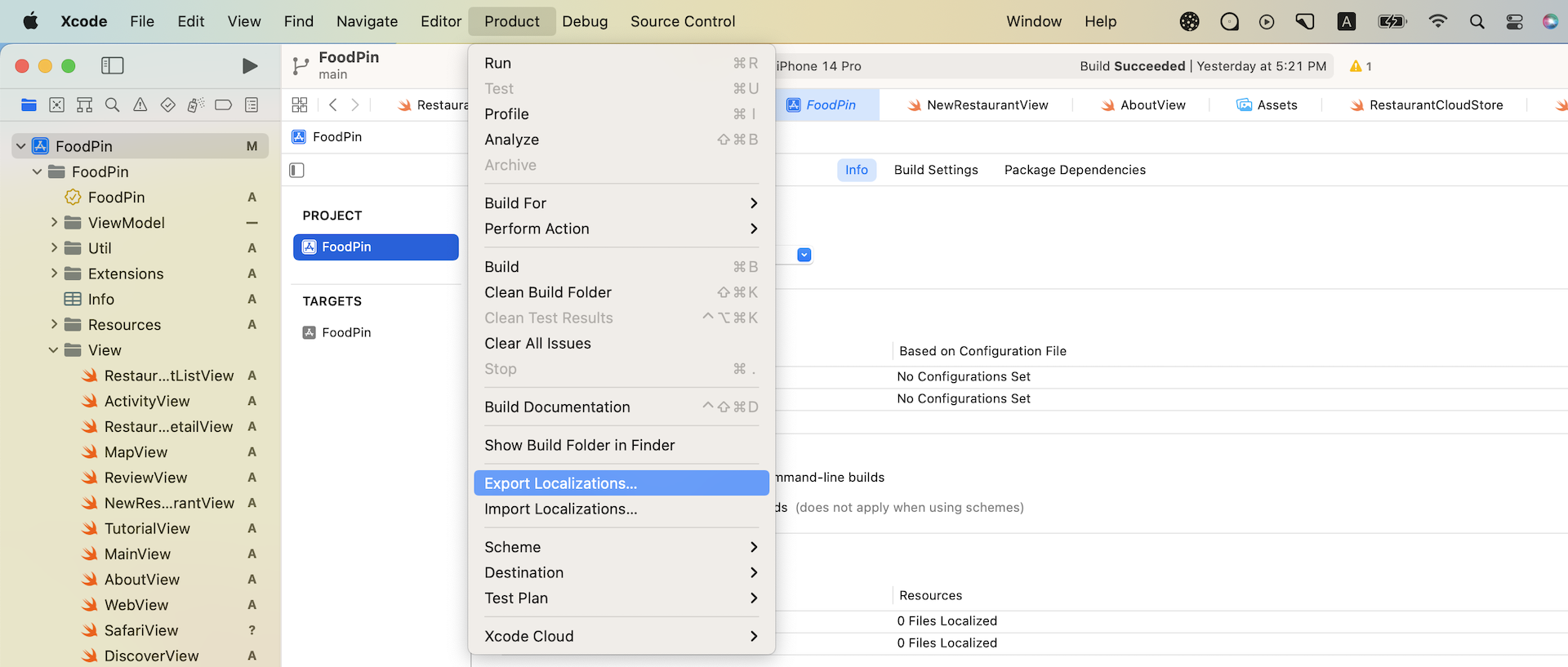
The Localization Catalog is a new type of localization artifact with the .xcloc extension. Prior to version 10, Xcode only generated the XLIFF file for localization. Starting from Xcode 10, it introduced the localization catalog to provide additional contextual information and support asset localization.
Assuming you save the localization to a FoodPin folder, if you open Finder and go to FoodPin, you should find three sub-folders with the .xcloc extension:
- en.xcloc
- de.xcloc
- zh-Hant.xcloc
Each of the languages has its own localization catalog. Say, for Chinese (Traditional), the localization catalog is named zh-Hant.xcloc. If you show the content of the .xcloc file, you will find a JSON file and three sub-folders:
- contents.json - it contains the meta data about the localization catalog like development region, target locale, tool info, and version.
- Localized Contents - this is the folder you would pass to your translator. It contains the .xliff file and other assets (e.g. images) for localization.
- Source Contents - this content of this folder is not for localization but just to provide additional contextual information to the localizers.
- Note - by default, this folder is empty. However, in case you want to provide additional information (e.g. screenshot) for the translators or localizers for reference, you can put the files here.
Now let's take a look at the zh-Hant.xliff file under Localized Contents. Open it with a text editor, you will find something like this:
<trans-unit id="Feedback" xml:space="preserve">
  <source>Feedback</source>
  <note>Feedback</note>
</trans-unit>
<trans-unit id="Find restaurants shared by your friends and other foodies" xml:space="preserve">
  <source>Find restaurants shared by your friends and other foodies</source>
  <note>Find restaurants shared by your friends and other foodies</note>
</trans-unit>
<trans-unit id="Follow Us" xml:space="preserve">
  <source>Follow Us</source>
  <note>Follow Us</note>
</trans-unit>
<trans-unit id="Instagram" xml:space="preserve">
  <source>Instagram</source>
  <note>Instagram</note>
</trans-unit>
Xcode has extracted the strings that we have wrapped with String(localized:) in the previous section.
Before the release of Xcode 13, you would have to pass the file to a professional translator for translation. The translator then uses an XLIFF-enabled tool to add all the missing translations.
Starting from the previous version, Xcode comes with a built-in editor for editing the translation files. You can open the zh-Hant.xcloc or de.xcloc file using Xcode and edit the translation directly.
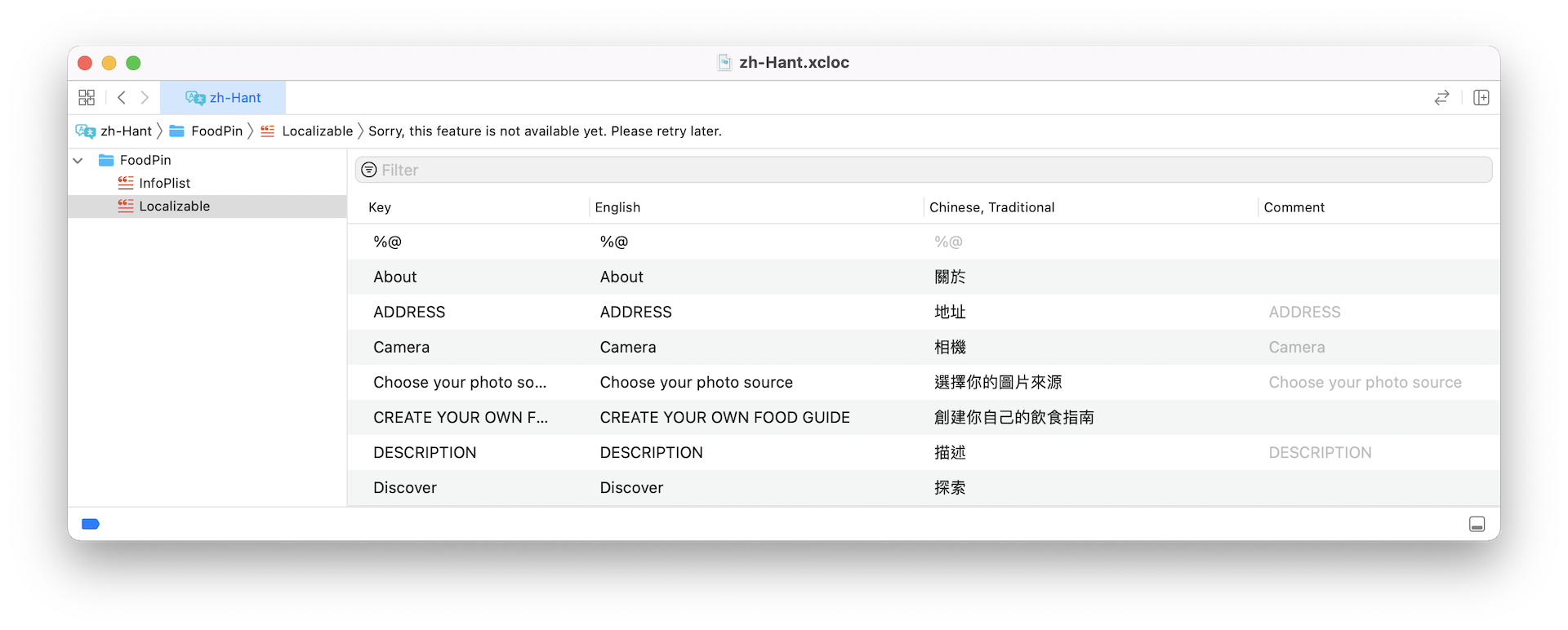
Once you save the translation, you are good to go. However, if you are like me and want to know how the translations are stored, you can show the package content of zh-Hant.xcloc or de.xcloc in Finder. And then you can open the .xliff file using any text editor.
The translated text is placed inside the <target> tag. Below is a part of the Traditional Chinese translation file:
<file original="FoodPin/Storyboard/Base.lproj/Main.storyboard" source-language="en" target-language="zh-Hant" datatype="plaintext">
  <header>
    <tool tool-id="com.apple.dt.xcode" tool-name="Xcode" tool-version="11.2" build-num="11B52"/>
  </header>
  <body>
    <trans-unit id="4gn-hN-6RK.placeholder" xml:space="preserve">
      <source>Fill in your restaurant name</source>
      <target>請填寫餐廳名字</target>
      <note>Class = "UITextField"; placeholder = "Fill in your restaurant name"; ObjectID = "4gn-hN-6RK";</note>
    </trans-unit>
    <trans-unit id="40d-lO-w2k.text" xml:space="preserve">
      <source>ADDRESS</source>
      <target>地址</target>
      <note>Class = "UILabel"; text = "ADDRESS"; ObjectID = "40d-lO-w2k";</note>
    </trans-unit>
The first line of the XML code specifies the original file and the target language of the translation. The target-language attribute specifies the language code of the translation. zh-Hant is the language code of Chinese. For German, the language code is de.
Import Localizations
Assuming your translator has completed the translations and passed you the localized files (download them from http://www.appcoda.com/resources/swift55/swiftui-foodpin-translation.zip), you just need a few clicks to import the translations.
In the project navigation, select the FoodPin project. Head up to the Editor menu and select Import Localizations. When prompted, select the localization catalog of the translated language (e.g. zh-Hant.xcloc). Xcode then automatically compares the translation with the existing files and shows you the differences (see Figure 24-5).
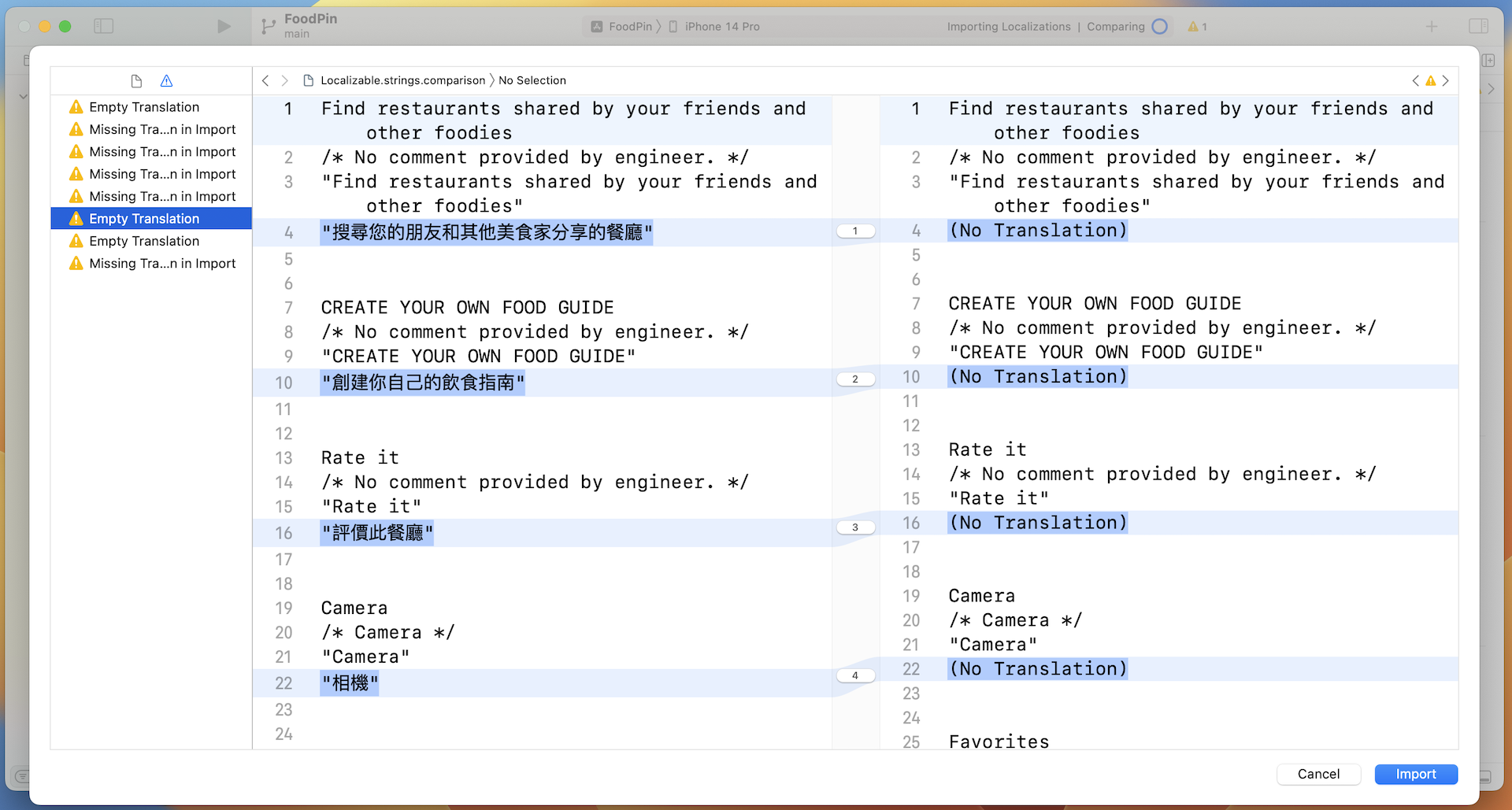
If you confirm the translation is correct, click the Import button to import it. To import other translation files (e.g. de.xcloc), repeat the same procedures to add them. When finished, you should find the Localizable.strings files for both German and Traditional Chinese.
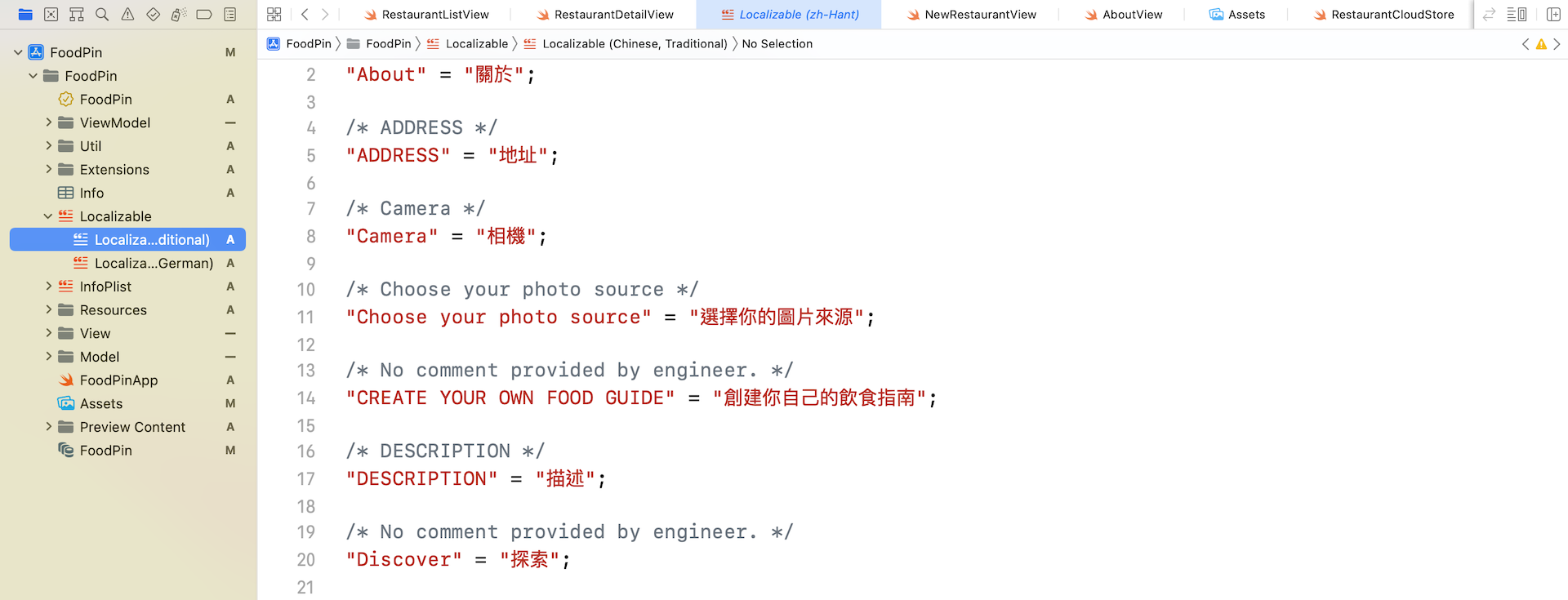
If you look into any of the Localizable.strings file (say, the Chinese version), you will find the translation of the localizable strings. At the beginning of each entry, it is the comment you put in the source code. On the left side of the equal sign, it is the key you specify when using the NSLocalizedString macro.
While you can edit the translations directly, I would recommend you to use the export feature as I have just demonstrated.
Testing the Localized App
One way to test the localization is to change the language preference of the simulator and then run the localized app on it. Alternatively, you can utilize a preview feature of Xcode that lets you test your app in different languages and regions, both at runtime and in Interface Builder. I will go through them with you one by one.
Xcode supports preview at runtime. You can enable this feature by editing the scheme sheet and set your preferred language in the dialog box.
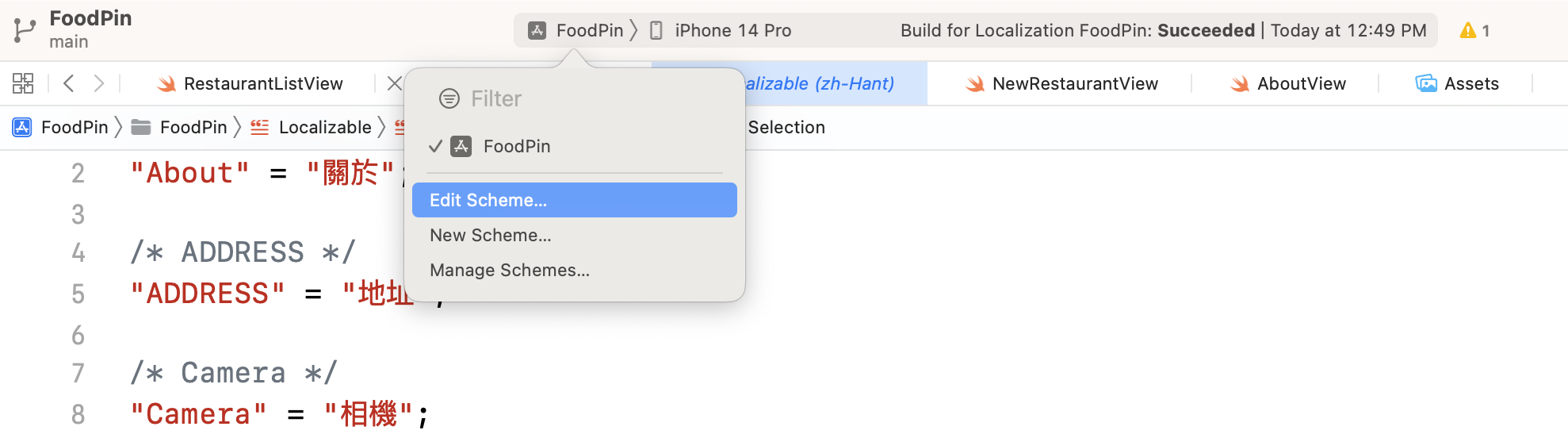
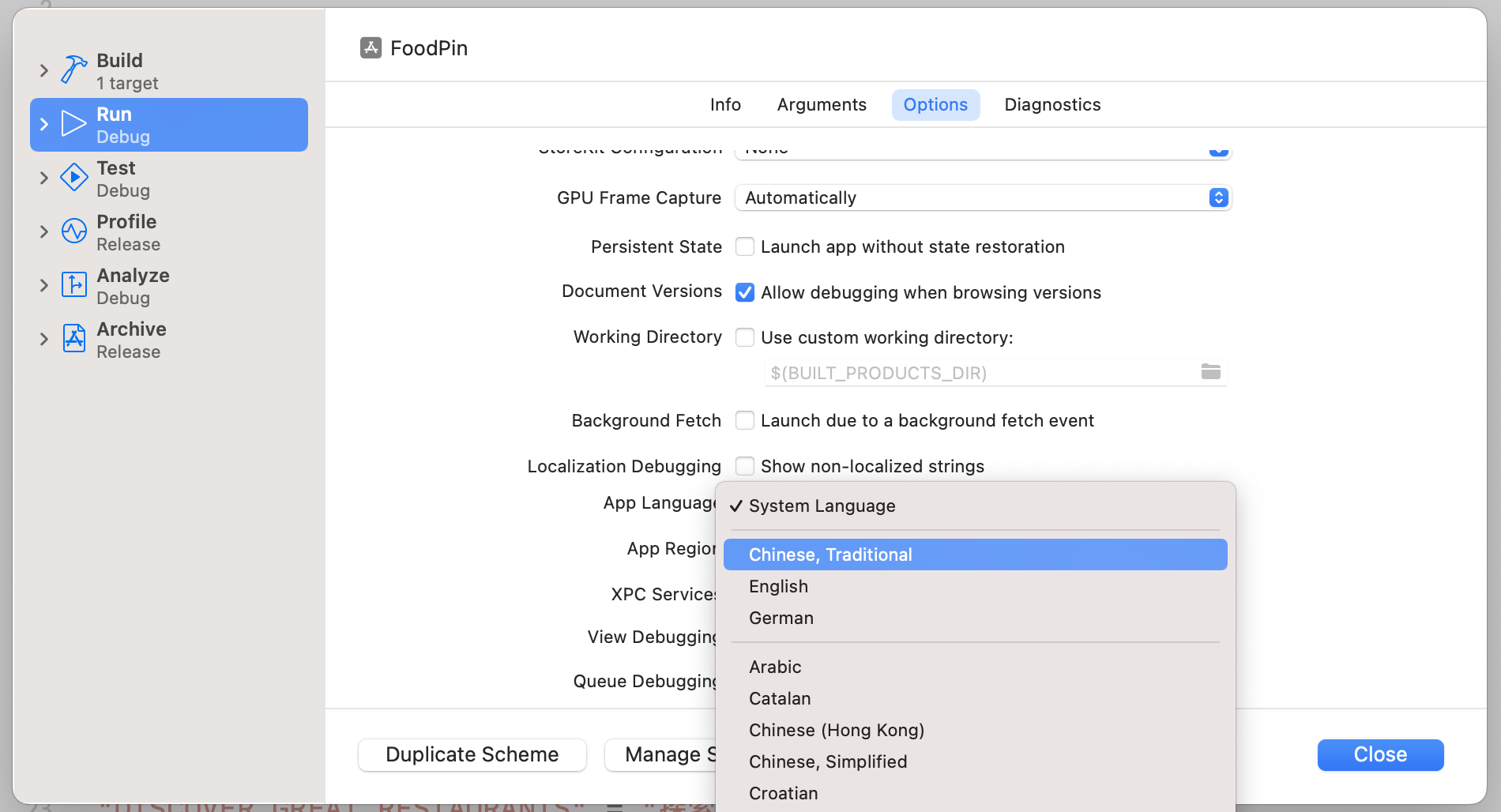
In the dialog box, select Run > Options and change the App language to your preferred language. For example, Chinese (Traditional). Click the Close button to save the setting.
Now click the Run button to launch the app; the language of the simulator should set to your preferred language. If you've set it to Chinese/German, your app should look like the screenshot shown in Figure 24-9.
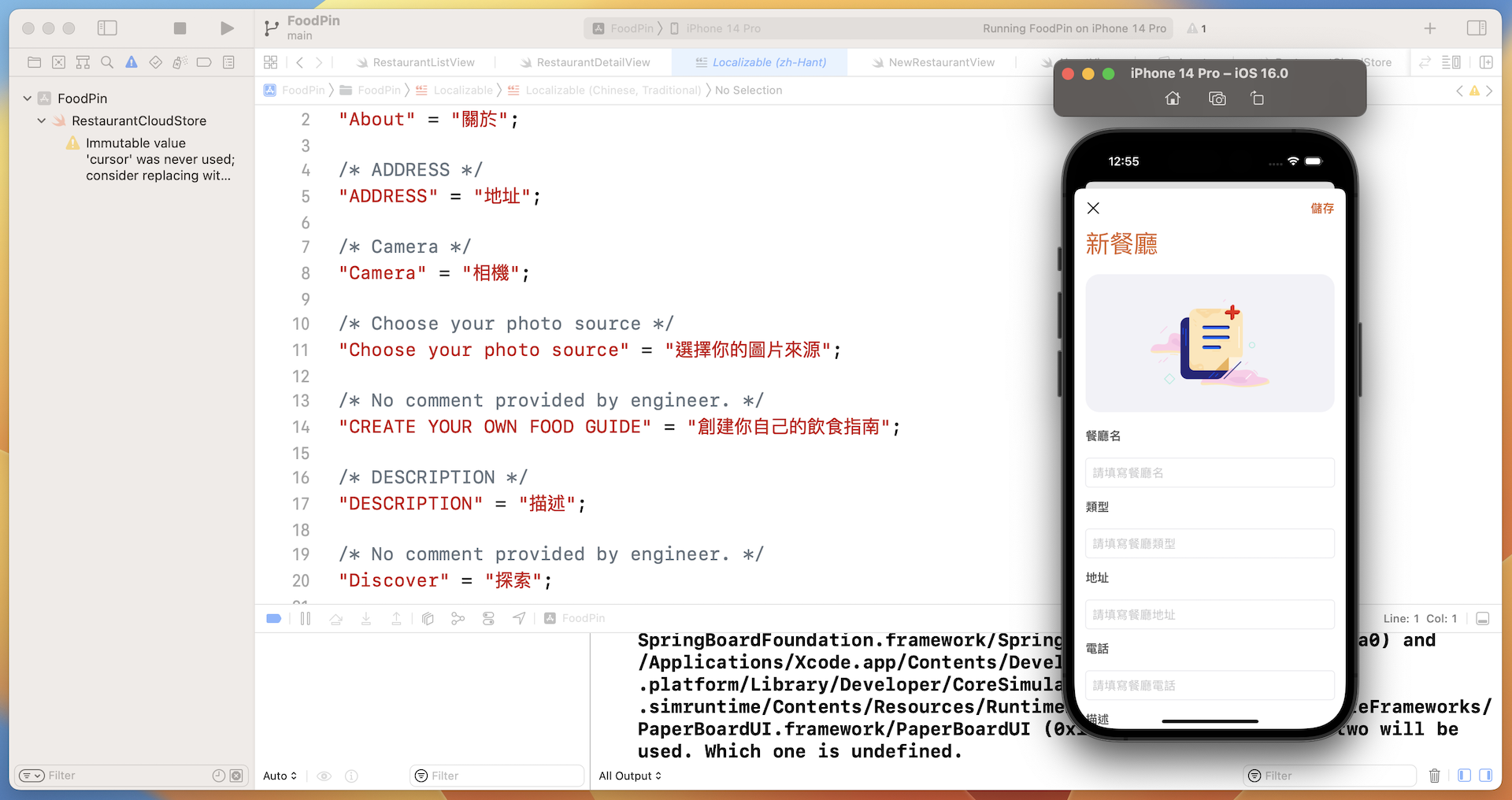
Testing the Localization Using Preview
For SwiftUI apps, you can preview a localization by setting the locale environment variable in your code. For example, if you add German to your project, you can set the locale to German (de) like this:
struct AboutView_Previews: PreviewProvider {
    static var previews: some View {
        AboutView()
            .environment(\.locale, .init(identifier: "de"))
    }
}
Summary
In this chapter, I have walked you through the localization process in Xcode. By using the export feature, it is pretty easy to localize an iOS app. Xcode 14 also comes with a very handy feature for editing the translation right in the app.
Remember that your apps are marketed to a global audience - users prefer to have an app UI in their own language. By localizing your app, you'll be able to provide a better user experience and attract more downloads.
For reference, you can download the complete Xcode project from http://www.appcoda.com/resources/swift57/swiftui-foodpin-localization.zip.