- Made by AppCoda
- Contact us / Support
- Tweet this book
- Preface
- 1. The Development Tools, the Learning Approach, and the App Idea
- 2. Your First Taste of Swift with Playgrounds
- 3. Build Your First App in Swift and SwiftUI
- 4. Designing UI Using Stack Views
- 5. Introduction to Prototyping
- 6. Understanding List and ForEach
- 7. Customizing List Views
- 8. Displaying Confirmations and Handling List View Selection
- 9. Understanding Struct, Project Organization and Code Documentation
- 10. List Deletion, Swipe Actions, Context Menus and Activity Controller
- 11. Working with Navigation View
- 12. Detail View Enhancement, Custom Fonts and Navigation Bar Customization
- 13. Understanding Colors, Swift Extensions and Dynamic Type
- 14. Working with Maps
- 15. View Animations and Blur Effect
- 16. Working with Observable Objects and Combine
- 17. Working with Forms and Camera
- 18. Working with Core Data
- 19. Adding a Search Bar Using Searchable
- 20. Building Walkthrough Screens Using TabView
- 21. Working with Tab View and Tab Bar Customizations
- 22. Displaying Web Content with WKWebView and SFSafariViewController
- 23. Working with CloudKit
- 24. Localizing Your App to Support Multiple Languages
- 25. Deploying and Testing Your App on a Real iOS Device
- 26. Beta Testing with TestFlight and CloudKit Production Deployment
- 27. Submit Your App to App Store
- 28. Adopting Haptic Touch
- 29. Working with User Notifications
- 30. Appendix - Swift Basics
- Published with GitBook
Chapter 18
Working with Core Data

Learn not to add too many features right away, and get the core idea built and tested.
– Leah Culver
Congratulations on making it this far! By now you've already built a simple app for users to list their favorite restaurants. Up to this point, all restaurants have been predefined in the source code and stored in an array. If you want to add a restaurant, the simplest way is to append the new restaurant to the existing restaurants array.
However, if you do it that way, you can't save the new restaurant permanently. Data stored in memory (e.g. array) is volatile. Once you quit the app, all the changes are gone. We need to find a way to save the data in a persistent manner.
To save the data permanently, we'll need to save in a persistent storage-like file or database. By saving the data to a database, for example, the data will be safe even if the app quits or crashes. Files are another way to save data, but they are more suitable for storing small amounts of data that do not require frequent changes. For instance, files are commonly used for storing application settings like the Info.plist file.
The FoodPin app may need to store thousands of restaurant records. Users may also add or remove the restaurant records quite frequently. In this case, a database is a suitable way to handle a large set of data. In this chapter, I will walk you through the Core Data framework and show you how to use it to manage data in the database. We will discuss how to create the Core Data model and perform CRUD (create, read, update, and delete) operations using the Core Data framework.
You will make a lot of changes to your existing FoodPin project, but after going through this chapter your app will allow users to save their favorite restaurants persistently.
What is Core Data?
When we talk about persistent data, you probably think of databases. If you are familiar with Oracle or MySQL, you know that a relational database stores data in the form of tables, rows, and columns; your app talks to the database by using a SQL (Structured Query Language) query. However, don't mix up Core Data with databases. Though the SQLite database is the default persistent store for Core Data on iOS, Core Data is not exactly a relational database - it is actually a framework that lets developers interact with databases (or other persistent storage) in an object-oriented way.
Note: If you have no idea of SQL and want to understand what it is, check out this simple tutorial (https://www.w3schools.com/sql/sql_intro.asp).
Take the FoodPin app as an example. If you want to save the data to a database, you are responsible for writing the code to connect to the database and retrieve or update the data using SQL. This would be a burden for developers, especially for those who do not know SQL.
Core Data provides a simpler way to save data to a persistent store of your choice. You can map the objects in your apps to the table in the database. Simply put, it allows you to manage records (select/insert/update/delete) in the database without even knowing any SQL.
Core Data Stack
Before we start working on the project, you need to first have a basic understanding of the Core Data Stack (see figure 18-1):
Managed Object Context – Think of it as a scratch pad or temporary memory area containing objects that interact with data in the persistent store. Its job is to manage objects created and returned using Core Data framework. Among the components in the Core Data stack, the managed object context, an instance of the
NSManagedObjectContextclass, is the one you'll work directly with most of the time. In general, whenever you need to fetch and save objects in the persistent store, the context is the first component you'll interact with.Managed Object Model – This describes the schema that you use in the app. If you have some background in databases, think of this as the database schema. However, the schema is represented by a collection of objects (also known as entities). For example, a collection of model objects can be used to represent the collection of restaurants in the FoodPin app. In Xcode, the managed object model is defined in a file with the extension
.xcdatamodeld. You can use the visual editor to define the entities and their attributes and relationships.Persistent Store Coordinator – As its name suggests, it is the coordinator of the Core Data stack. It sits between the managed object context and the persistent store. While the figure shows a single store, a Core Data application can have multiple stores. The persistent store coordinator, an instance of
NSPersistentStoreCoordinator, is the party responsible for managing different persistent object stores and saving the objects to the stores. You seldom interact with the persistent store coordinator directly when using Core Data.Persistent Store - This is the repository in which your data is actually stored. Usually, it's a database, and SQLite is the default database. But it can also be a binary or XML file.
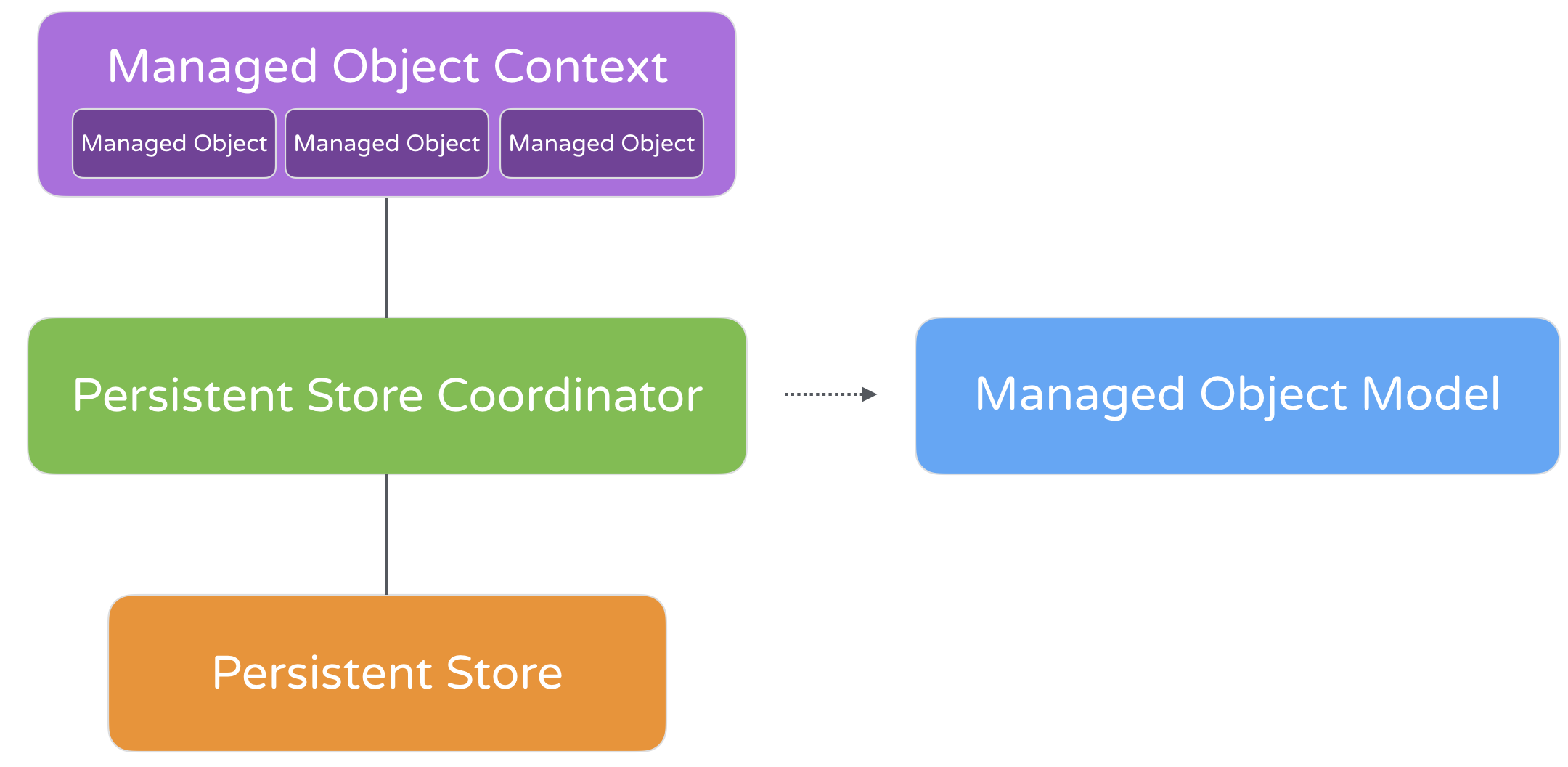
That looks complicated, right? Definitely. Apple's engineers were also aware of the issue. Starting from iOS 10, the team introduced a class called NSPersistentContainer to simplify the management of Core Data stack in your apps. NSPersistentContainer is the class you will deal with for saving and retrieving data.
Feeling confused? No worries. You will understand what I mean as we convert the FoodPin app from arrays to Core Data.
Using Core Data in SwiftUI Projects
If you start from a brand new project, the easiest way to use the Core Data framework is by enabling the Core Data option. You can give it a try. Launch Xcode and create a new project using the App template. Name it to whatever name you like but please ensure you check the Core Data checkbox.
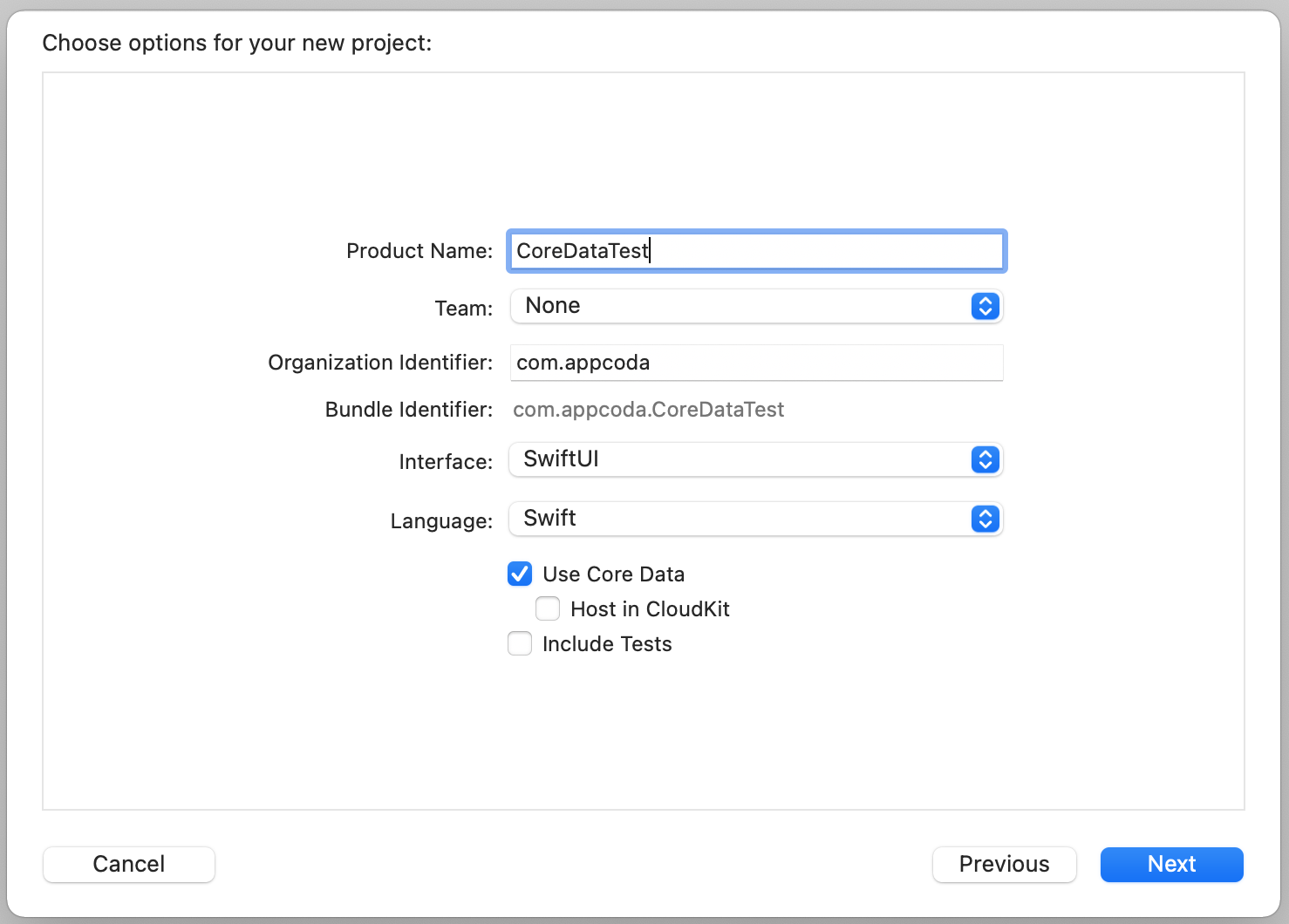
By enabling Core Data, Xcode will generate all the required code and the managed object model for you. Once the project created, you should see a new file named CoreDataTest.xcdatamodeld. In Xcode, the managed object model is defined in a file with the extension .xcdatamodeld. This is the managed object model generated for your project and this is where you define the entities for interacting with the persistent store.
Take a look at the Persistence.swift file, which is another file generated by Xcode. This file contains the code for loading the managed object model and saving the data to the persistent store.
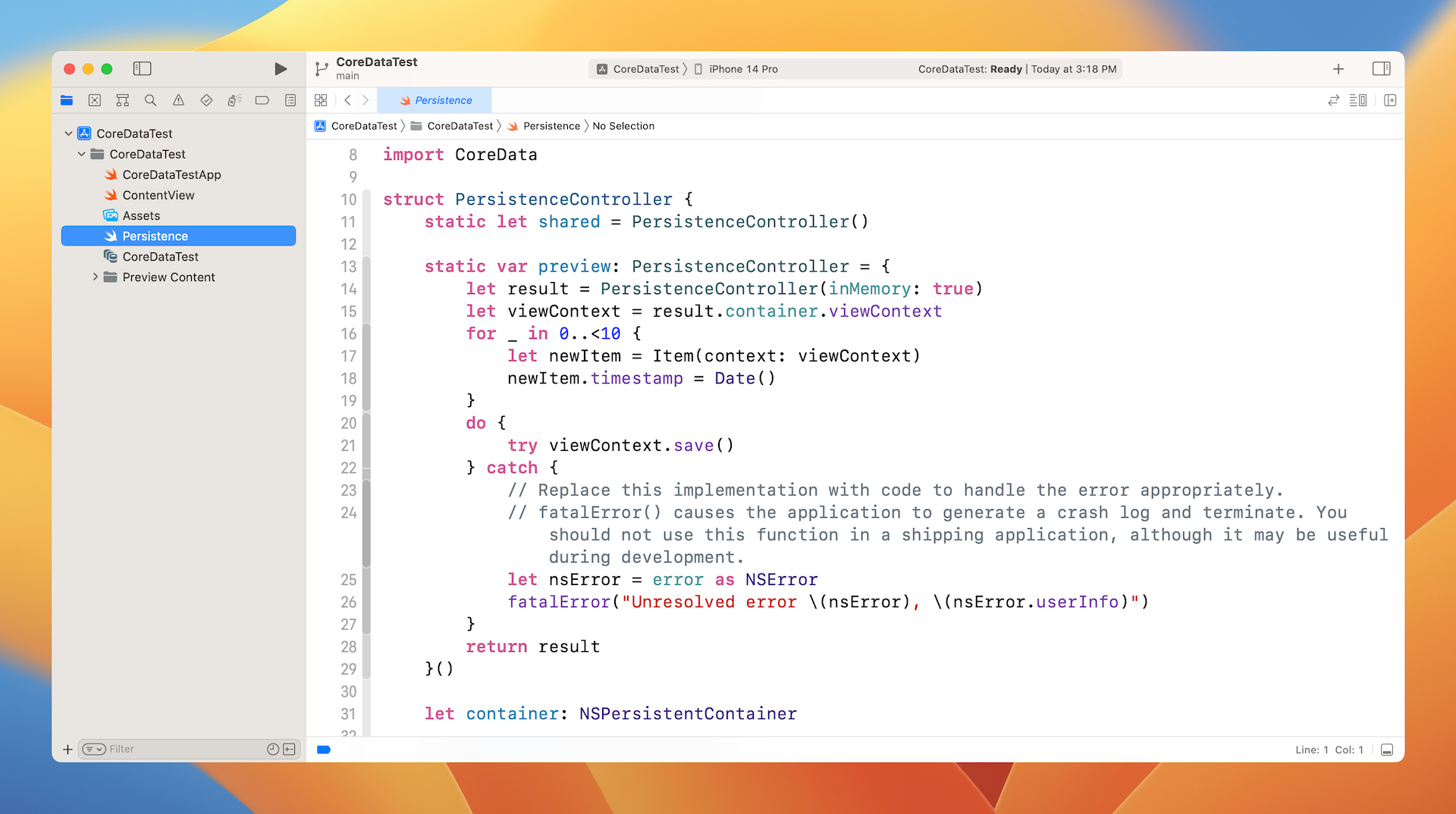
The generated code provides a variable and a method:
- The variable
containeris an instance ofNSPersistentContainer, which was initialized with a persistent store named "CoreDataTest". This container encapsulates the Core Data stack in your application. Before iOS 10, you will need to create and manage the creation of the managed object model (NSManagedObjectModel), persistent store coordinator (NSPersistentStoreCoordinator), and the managed object context (NSManagedObjectContext). The introduction ofNSPersistentContainersimplifies all that. Later, you just use this variable to interact with the Core Data stack. - The
saveContext()method is a helper that provides data saving. When you need to insert/update/delete data in the persistent store, you will call this method.
If you've developed apps using UIKit before, you usually use the container to manage the data in the database or other persistent stores. In SwiftUI, it's a little bit different. We seldom use this container directly. Instead SwiftUI injects the managed object context into the environment, so that any view can retrieve the context and manage the data.
Take a look at the CoreDataTestApp.swift file. Xcode adds a constant that holds the instance of PersistenceController and a line of code to inject the managed object context is injected into the environment.
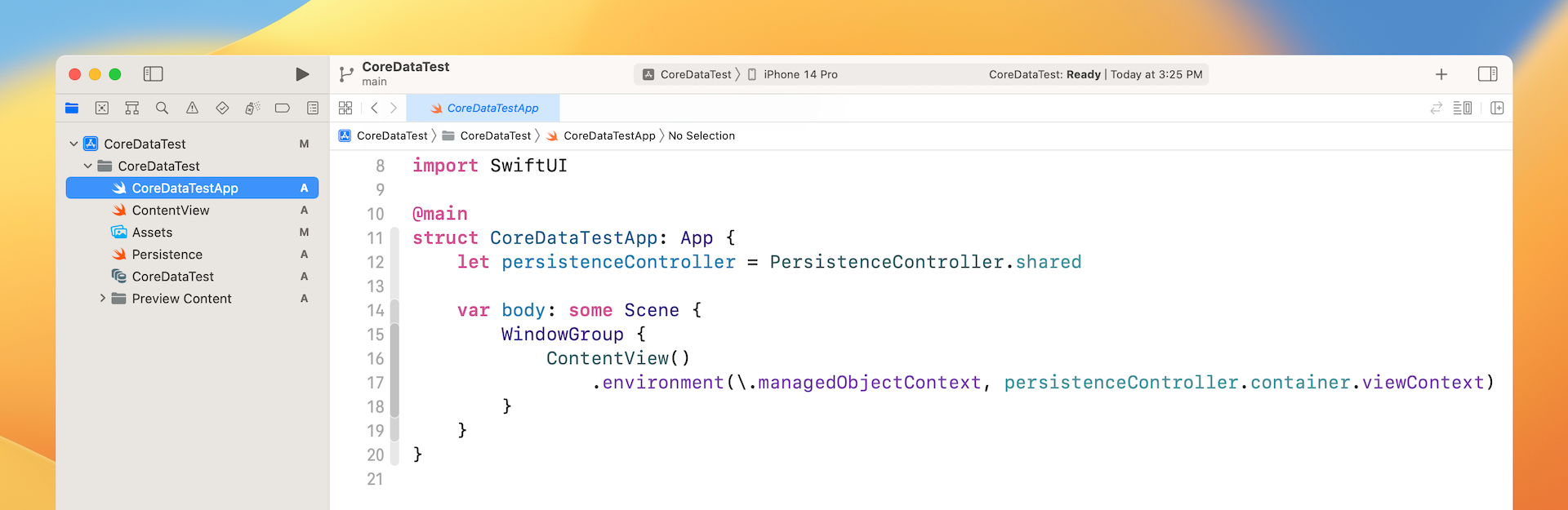
This is all the code and files generated by Xcode when enabling the Core Data option. If you open ContentView.swift, Xcode also generates sample code for loading data from the local data store. Look at the code to get an idea of how this works. In general, to save and manage data on the local database, the procedures are:
Create an entity in the managed object model (i.e. .xcdatamodeld)
Define a managed object, which inherits from
NSManagedObject, to associate with the entityIn the views that need to save and update the data, get the managed object context from the environment using
@Environmentlike this:@Environment(\.managedObjectContext) var contextAnd then create the managed object and use the
savemethod of the context to add the object to the database. Here is a sample code snippet:let newItem = Item(context: viewContext) newItem.timestamp = Date()For data retrieval, Apple introduced a property wrapper called
@FetchRequestfor you to fetch data from the persistent store. Here is sample code:@FetchRequest( sortDescriptors: [NSSortDescriptor(keyPath: \Item.timestamp, ascending: true)], animation: .default)This property wrapper makes it very easy to perform a fetch request. You just need to specify the entity object you want to retrieve and how the data is ordered. The framework will then use the environment's managed object context to fetch the data. Most importantly, SwiftUI will automatically update any views that are bound to the fetched results because the fetch result is a collection of
NSManagedObject, which conforms to theObservableObjectprotocol.
This is how you work with Core Data in SwiftUI projects. I know you may be confused by some of the terms and procedures. This section is just a quick introduction. Later, when you work on the demo app, we will go through these procedures in detail.
Creating the Persistence Controller
With a basic understanding of Core Data, let's go back to the FoodPin project. Since we didn't enable the Core Data option when creating the project, we have to add the Persistence Controller on our own. In the project navigator, right click the Model folder and choose New File.... Select the Swift File template and set the name Persistence.swift.
Replace the file content like this:
import CoreData
import UIKit

struct PersistenceController {
    static let shared = PersistenceController()

    let container: NSPersistentContainer

    init(inMemory: Bool = false) {
        container = NSPersistentContainer(name: "FoodPin")
        if inMemory {
            container.persistentStoreDescriptions.first!.url = URL(fileURLWithPath: "/dev/null")
        }
        container.loadPersistentStores(completionHandler: { (storeDescription, error) in
            if let error = error as NSError? {
                fatalError("Unresolved error \(error), \(error.userInfo)")
            }
        })
    }
}
This is the code you need to access the Core Data model and manage data in the internal database. Take note that the container's name is set to FoodPin.
Next, open FoodPinApp.swift and add the code for injecting the managed object context into the environment. In the FoodPinApp struct, declare the following variable to hold the PersistenceController:
let persistenceController = PersistenceController.shared
Next, in the same file, attach the environment modifier to RestaurantListView() like this:
RestaurantListView()
    .environment(\.managedObjectContext, persistenceController.container.viewContext)
In the code above, we inject the managed object context into the environment of RestaurantListView. This allows us to easily access the context in the content view for managing the data in the database.
Creating the Managed Object Model
In the PersistenceController struct, we created an instance of NSPersistentContainer with an object model named FoodPin. We haven't created the object model yet. Now right click the FoodPin folder in the project navigator and select New File.... Choose Data Model as the template.
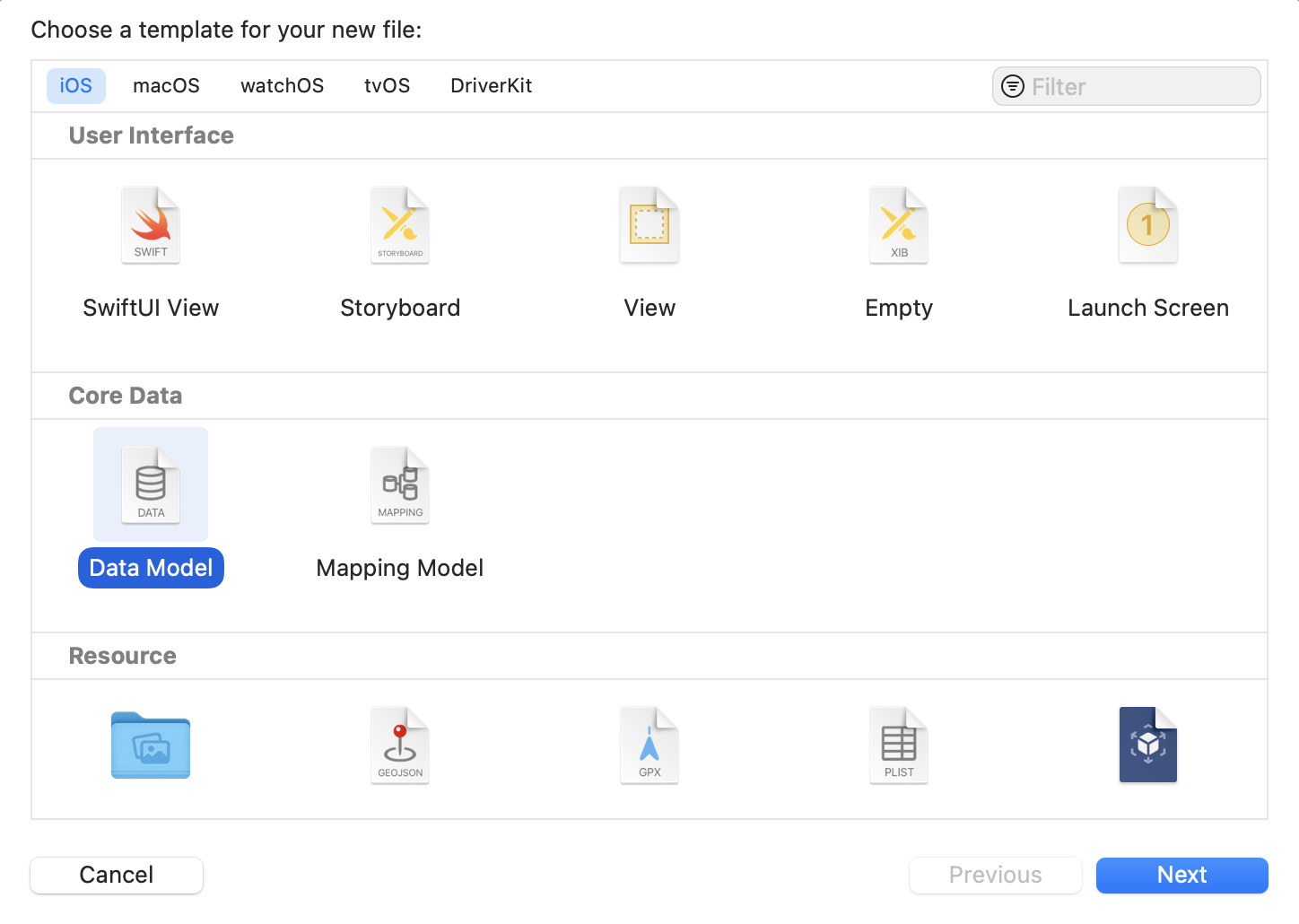
Name the model FoodPin and click Create to create the data model. Once created, you should find a file named FoodPin.xcdatamodeld in the project navigator. Select it to open the data model editor. From here, you can create entities for your data model.
Since we would like to store the Restaurant object in the database, we will create a Restaurant entity that matches the Restaurant class in our code. To create an entity, click the Add Entity button at the bottom of the editor pane and name the entity Restaurant.
In order to save the data of the Restaurant object to the database, we have to add several attributes for the entity that align with the attributes of the object. Simply click the + button under the attributes section to create a new attribute. Add 8 attributes for the Restaurant entity including name, type, location, phone, summary, image, isFavorite, and ratingText. Refer to figure 18-6 for details.
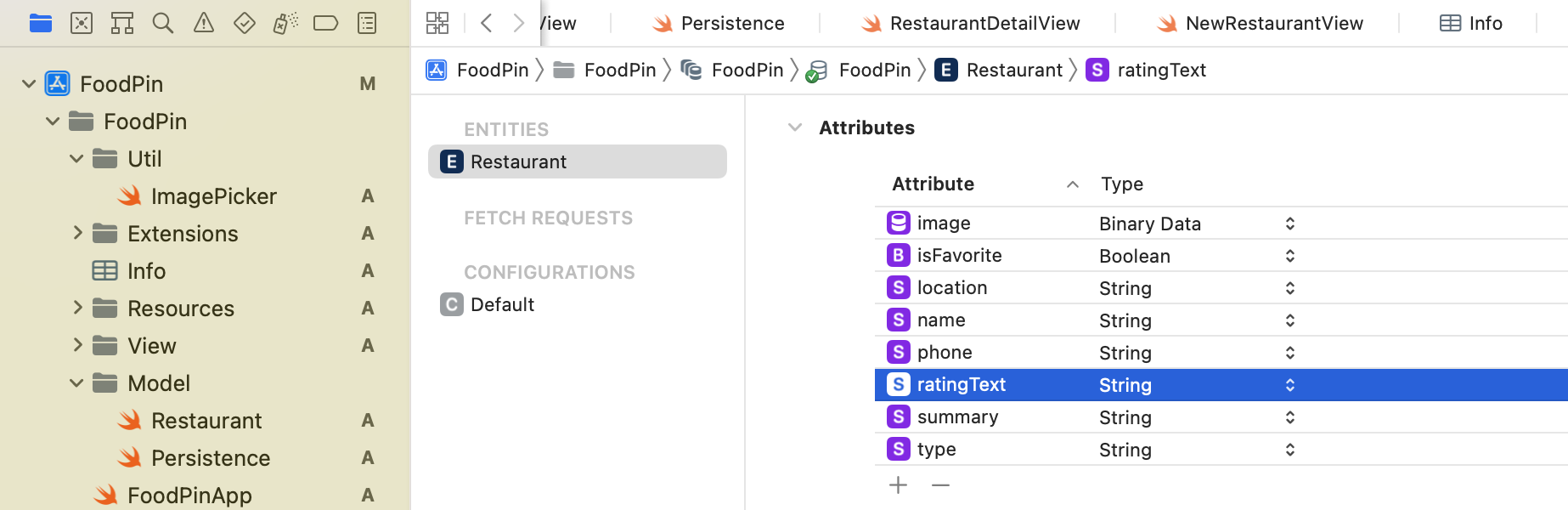
You may wonder why we use the attribute name summary instead of description. If you tried to use the name description, you will encounter an error saying that the name description is reserved. This is why we couldn't use it and had to replace it with summary.
The attribute types of name, type, location, phone, isFavorite, summary, and ratingText are trivial, but why do we set the attribute type of image to Binary Data?
Presently, the restaurant images are bundled in the app and managed by the asset catalog. This is why we can load an image by passing UIImage with the image name. When a user creates a new restaurant, the image is loaded from an external source, whether it's from the built-in photo library or taken from a camera. In this case, we can't just store the file name. Instead, we save the actual data of the image into the database. Binary data type is used for this purpose.
You may have another question about the ratingText attribute. Why do we name it ratingText instead of rating? If you refer to the Restaurant.swift file again, the rating variable is of the type Rating, which is an enum. Each case has a default text value (e.g. awesome). This is why we name the attribute ratingText to store the text value.
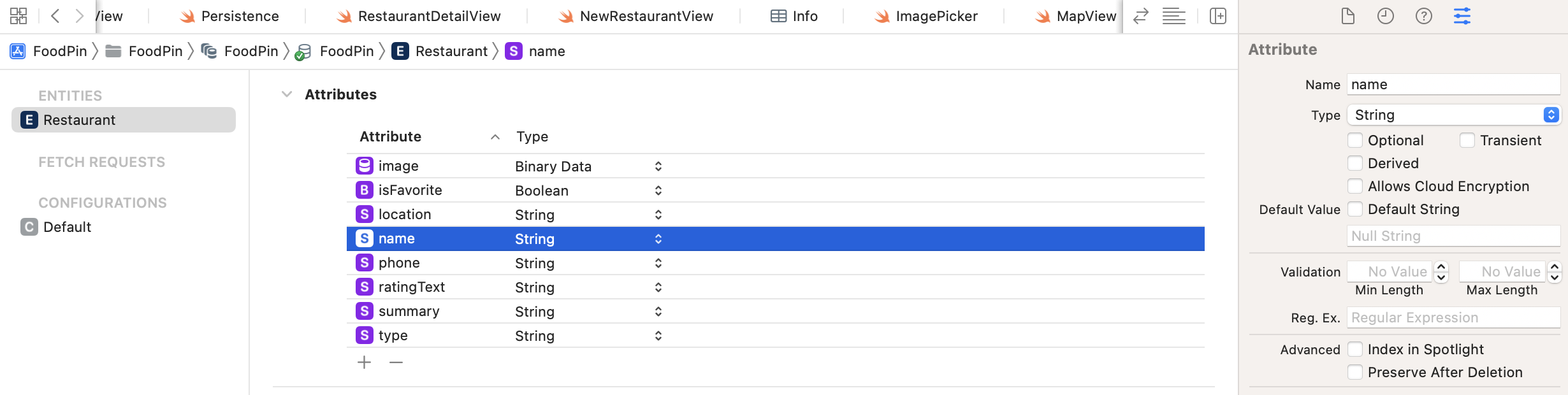
If you select a particular attribute, you can further configure its properties in the Data Model inspector. For example, the name attribute is a required attribute. You can uncheck the Optional checkbox to make it mandatory. For the FoodPin project, you can configure all attributes (except rating) as required.
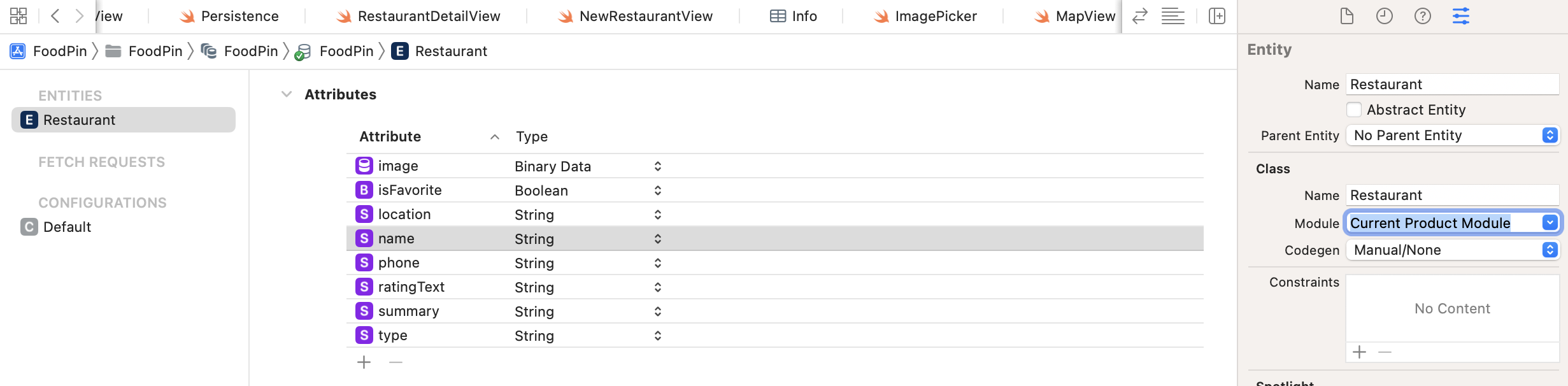
By default, Xcode automatically generates the model class of this Restaurant entity. However, I prefer to create the class manually. So, select the Restaurant entity and open the Data Model inspector. If you can't see the inspector, go up to the menu and select View > Inspectors > Show Data Model Inspector. In the Class section, set the Module to Current Product Module and Codegen to Manual/None. This disables the code generation.
Defining the Model Class
In Core Data, every entity should be paired with a model class. By default, this model class is generated by Xcode. Previously, we changed the setting from code gen to manual. Therefore, we need to implement the model class Restaurant manually. We already have created the Restaurant class before, but it was not catered for Core Data. Now we will modify the code to make it become the model class for our Core Data model.
Switch over to Restaurant.swift and import the CoreData package:
import CoreData
Next, replace the Restaurant class with the following code:
public class Restaurant: NSManagedObject {

    @NSManaged public var name: String
    @NSManaged public var type: String
    @NSManaged public var location: String
    @NSManaged public var phone: String
    @NSManaged public var summary: String
    @NSManaged public var image: Data
    @NSManaged public var isFavorite: Bool
    @NSManaged public var ratingText: String?

}

extension Restaurant {

    enum Rating: String, CaseIterable {
        case awesome
        case good
        case okay
        case bad
        case terrible

        var image: String {
            switch self {
            case .awesome: return "love"
            case .good: return "cool"
            case .okay: return "happy"
            case .bad: return "sad"
            case .terrible: return "angry"
            }
        }

    }

    var rating: Rating? {
        get {
            guard let ratingText = ratingText else {
                return nil
            }

            return Rating(rawValue: ratingText)
        }

        set {
            self.ratingText = newValue?.rawValue
        }
    }
}
As a model class for the Restaurant entity, the Restaurant class should extend from the NSManagedObject class. Each property is annotated with @NSManaged and corresponds to the attribute of the Core Data model we created earlier. By using @NSManaged, this tells the compiler that the property is taken care by Core Data.
In the original version of Restaurant, we have the rating property which has a type of Enum. For the Core Data version, we have to create a computed property for rating.
The Rating enum is exactly the same as before. For the rating property, it is now a computed property that handles the conversion of the rating text. Up till now, all our code uses the Rating enum to process the restaurant rating. Due to the use of Core Data, we store the rating as text. We need to find a way to bridge between rating and ratingText. This is why we created the rating property as a computed property. For the getter, we convert the ratingText back to an enum. For the setter, we retrieve the raw value of the enum and assign it to ratingText.
Using @FetchRequest to Fetch Records
Now that we've prepared the model class, it's time to modify the code to fetch records from database. Switch over to RestaurantListView.swift. You should see quite a number of errors. No worries, we are going to fix them one by one.
Originally, we have an array variable holding the sample restaurant data, which is also marked with @State:
@State var restaurants = [ Restaurant(name: "Cafe Deadend", type: "Coffee & Tea Shop", location: "G/F, 72 Po Hing Fong, Sheung Wan, Hong Kong", phone: "232-923423", description: "Searching for great breakfast eateries and coffee? This place is for you. We open at 6:30 every morning, and close at 9 PM. We offer espresso and espresso based drink, such as capuccino, cafe latte, piccolo and many more. Come over and enjoy a great meal.", image: "cafedeadend", isFavorite: false),
                           .
                           .
                           .
                         ]
Since we are moving to store the items in database, we need to modify this line of code and fetch the data from it. In SwiftUI, it has a property wrapper called @FetchRequest for you to load data from the database easily.
Replace the lines of code above with @FetchRequest like this:
@FetchRequest(
    entity: Restaurant.entity(),
    sortDescriptors: [])
var restaurants: FetchedResults<Restaurant>
Recall that we've injected the managed object context in the environment, this fetch request automatically utilizes the context and fetches the required data for you. In the code above, we specify to fetch the Restaurant entity and how the results should be ordered.
The type of the image property is now changed to Data. We can no longer instantiate an image view using the image's file name. Therefore, you should see an error when accessing the image property in BasicTextImageRow.
In the BasicTextImageRow view, change the code of the Image view from:
Image(restaurant.image)
    .resizable()
    .frame(width: 120, height: 118)
    .cornerRadius(20)
To:
if let imageData = restaurant.image {
    Image(uiImage: UIImage(data: imageData) ?? UIImage())
        .resizable()
        .frame(width: 120, height: 118)
        .cornerRadius(20)
}
Instead of loading the image using its filename, we instantiate the Image view by creating the UIImage object and the image data. Similarly, change the following lines of code from:
if let imageToShare = UIImage(named: restaurant.image) {
    ActivityView(activityItems: [defaultText, imageToShare])
} else {
    ActivityView(activityItems: [defaultText])
}
To:
if let imageData = restaurant.image,
   let imageToShare = UIImage(data: imageData) {
    ActivityView(activityItems: [defaultText, imageToShare])
} else {
    ActivityView(activityItems: [defaultText])
}
There is another error for the line of code shown in figure 19-9. Here, we pass the binding of the Restaurant object. However, we updated the restaurants variable to the type FetchedResults<Restaurant>. This is why Xcode shows you the error.
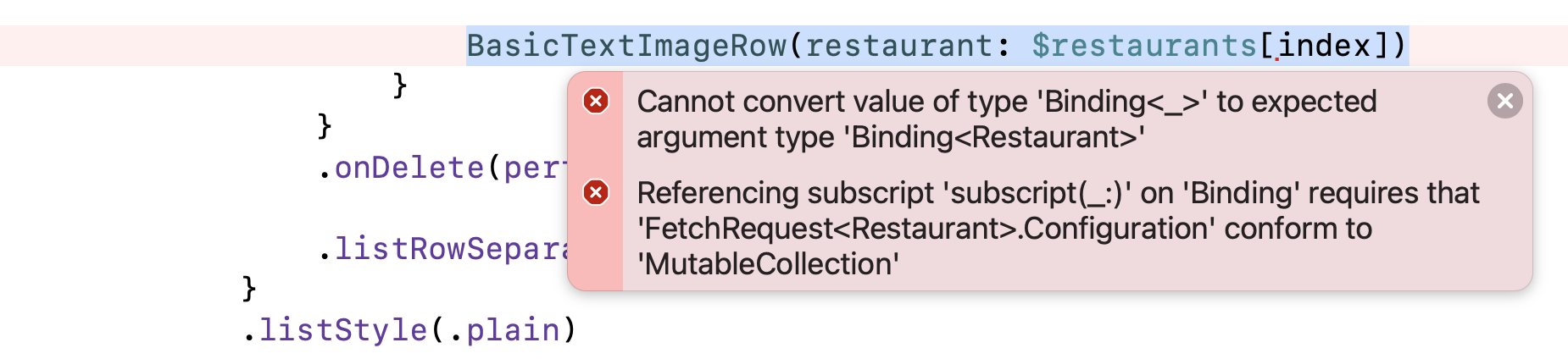
To fix the error, replace the binding of BasicTextImageRow from:
@Binding var restaurant: Restaurant
To:
@ObservedObject var restaurant: Restaurant
And then, you can update the initialization of BasicTextImageRow like this:
BasicTextImageRow(restaurant: restaurants[index])
Deleting a Record from Database
You should still see an error in the RestaurantListView struct, which is related to the deletion of restaurants. Here is the line of code that triggers the error:
restaurants.remove(atOffsets: indexSet)
To fix the issue, declare a context variable that retrieves the managed object context:
@Environment(\.managedObjectContext) var context
And then we will create a new function named deleteRecord in the RestaurantListView struct like this:
private func deleteRecord(indexSet: IndexSet) {

    for index in indexSet {
        let itemToDelete = restaurants[index]
        context.delete(itemToDelete)
    }

    DispatchQueue.main.async {
        do {
            try context.save()

        } catch {
            print(error)
        }
    }
}
To delete a record from database using Core Data, you can call the delete method of the managed context and pass it the item to delete. And then you invoke the save method to perform the operation.
With the new method, you can modify the .onDelete modifier like this:
.onDelete(perform: deleteRecord)
When the user deletes an item from the list view, we call the deleteRecord method to remove the item from database permanently.
Handling Data Preview
We have fixed most of the errors, but there are still a couple of errors appeared in the RestaurantListView_Previews struct. Since the Restaurant class is now extended from NSManagedObject, we can no longer create a Restaurant object like before.
Instead, we need to create some sample data in the PersistenceController. Switch over to Persistence.swift and create the preview data like this:
static var preview: PersistenceController = {
    let result = PersistenceController(inMemory: true)
    let viewContext = result.container.viewContext

    let restaurant = Restaurant(context: viewContext)

    restaurant.name = "Cafe Deadend"
    restaurant.type = "Coffee & Tea Shop"
    restaurant.location = "G/F, 72 Po Hing Fong, Sheung Wan, Hong Kong"
    restaurant.phone = "232-923423"
    restaurant.summary = "Searching for great breakfast eateries and coffee? This place is for you. We open at 6:30 every morning, and close at 9 PM. We offer espresso and espresso based drink, such as capuccino, cafe latte, piccolo and many more. Come over and enjoy a great meal."
    restaurant.image = (UIImage(named: "cafedeadend")?.pngData())!
    restaurant.isFavorite = false

    do {
        try viewContext.save()
    } catch {
        // Replace this implementation with code to handle the error appropriately.
        // fatalError() causes the application to generate a crash log and terminate. You should not use this function in a shipping application, although it may be useful during development.
        let nsError = error as NSError
        fatalError("Unresolved error \(nsError), \(nsError.userInfo)")
    }
    return result
}()

static var testData: [Restaurant]? = {
    let fetchRequest = NSFetchRequest<NSFetchRequestResult>(entityName: "Restaurant")
    return try? PersistenceController.preview.container.viewContext.fetch(fetchRequest) as? [Restaurant]
}()
You can place the variable declaration inside PersistenceController. The preview variable is responsible for initializing an in-memory database with the sample restaurant data. The testData variable stores the array of restaurants, which are retrieved from the in-memory database.
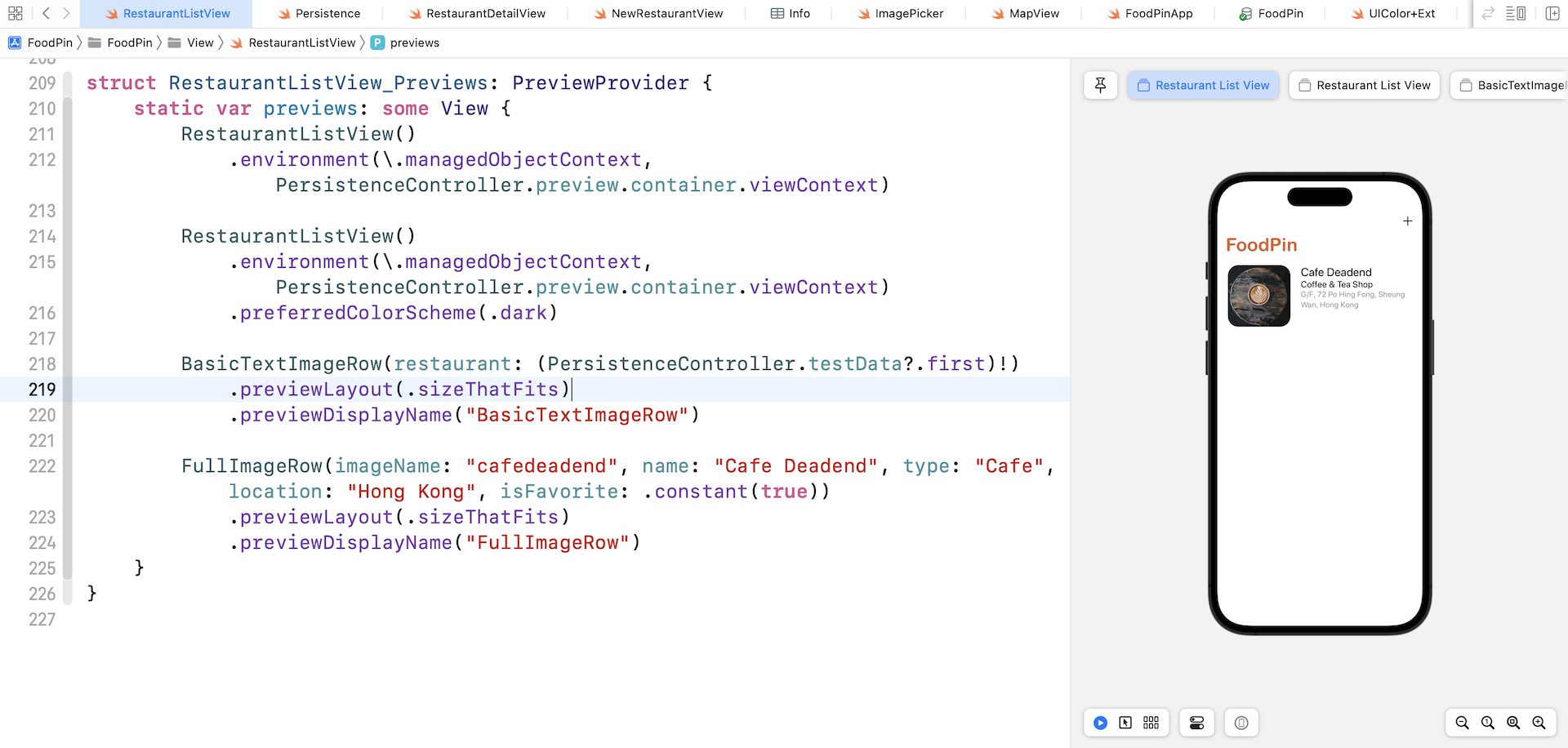
With these test data, we can go back to RestaurantListView.swift and update the RestaurantListView_Previews struct like this:
struct RestaurantListView_Previews: PreviewProvider {
    static var previews: some View {
        RestaurantListView()
            .environment(\.managedObjectContext, PersistenceController.preview.container.viewContext)

        RestaurantListView()
            .environment(\.managedObjectContext, PersistenceController.preview.container.viewContext)
            .preferredColorScheme(.dark)

        BasicTextImageRow(restaurant: (PersistenceController.testData?.first)!)
            .previewLayout(.sizeThatFits)

        FullImageRow(imageName: "cafedeadend", name: "Cafe Deadend", type: "Cafe", location: "Hong Kong", isFavorite: .constant(true))
            .previewLayout(.sizeThatFits)
    }
}
Now we retrieve the test data from the PersistenceController. For the RestaurantListView, we also inject the managed context into the environment for preview purpose.
Migrating the Restaurant Detail View
The app is still not ready for run. If you open the RestaurantDetailView.swift file, Xcode shows you a couple of errors, which are due to the Core Data change.
First, it's the Image view. Instead of loading the image using filename, we need to change it to use the image's data. So, change Image(restaurant.image) to:
Image(uiImage: UIImage(data: restaurant.image)!)
The other error is related to the preview. In RestaurantDetailView_Previews, update the instantiation of RestaurantDetailView like this:
struct RestaurantDetailView_Previews: PreviewProvider {
    static var previews: some View {
        NavigationStack {
            RestaurantDetailView(restaurant: (PersistenceController.testData?.first)!)
                .environment(\.managedObjectContext, PersistenceController.preview.container.viewContext)

        }
        .accentColor(.white)
    }
}
Migrating the Review View
Now let's switch over to ReviewView.swift to fix the error. Change the following line of code from:
Image(restaurant.image)
To:
Image(uiImage: UIImage(data: restaurant.image)!)
For the ReviewView_Previews struct, change the instantiation of ReviewView like this:
struct ReviewView_Previews: PreviewProvider {

    static var previews: some View {
        ReviewView(isDisplayed: .constant(true), restaurant: (PersistenceController.testData?.first)!)
    }
}
Now you should be able to preview the RestaurantListView in Xcode. For testing and preview purpose, we only added one record in the in-memory database.
Handling Empty List Views
Before we continue to discuss how to work with Core Data, let me sidetrack a bit to talk about empty list view. Now that you should be see a record in the preview pane, but the list view is blank when you run the app on a simulator. Wouldn't it be great if it can show users some instructions like the screen shown in figure 19-11?
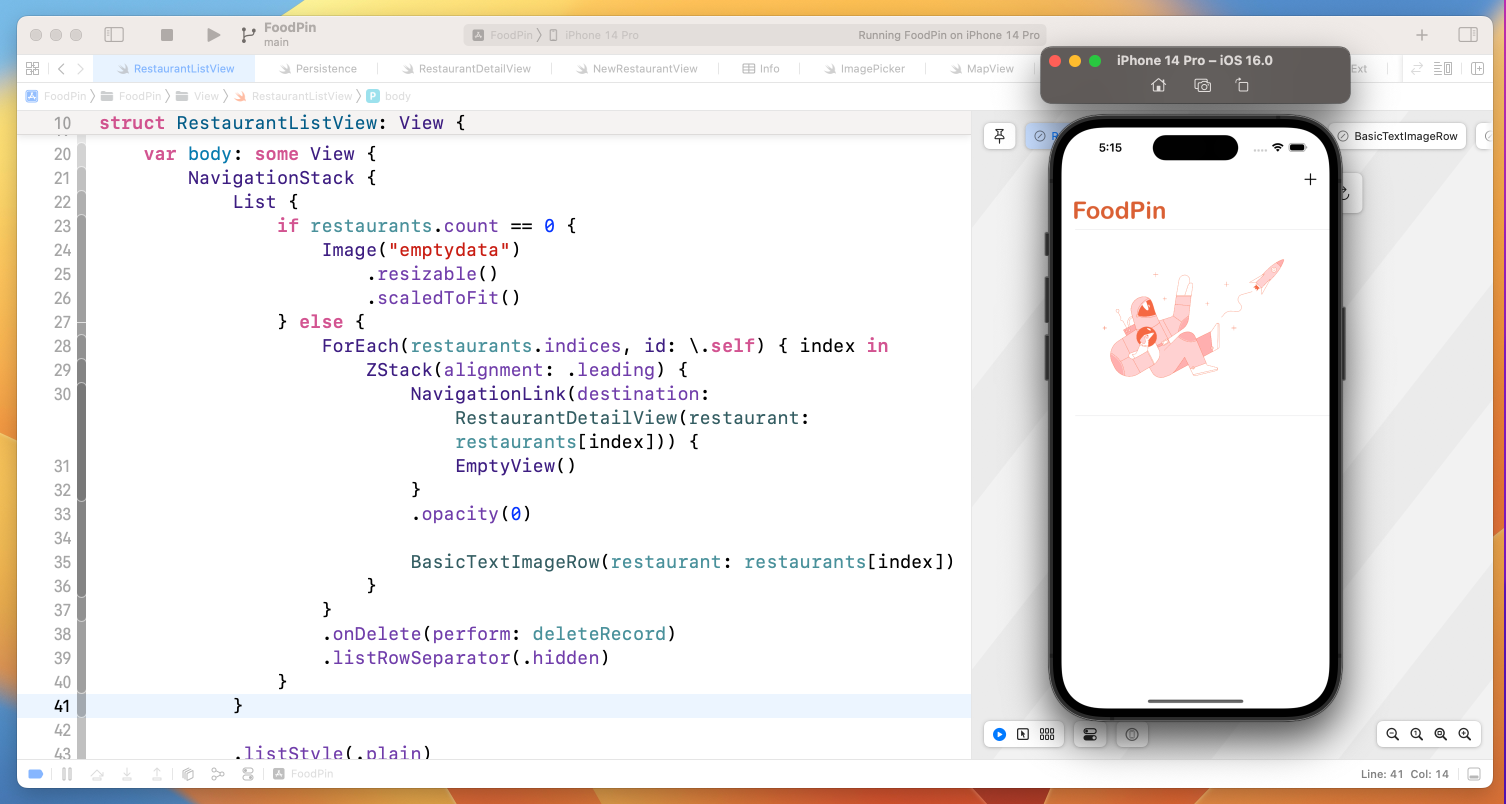
I have already designed an image for the empty view. You can download it from http://www.appcoda.com/resources/swift53/emptydata.zip. Unzip the file and add the image to the asset catalog (Assets.xcasset). Make sure you enable the Preserve Vector Data option for the image.
Now switch over to RestaurantListView.swift. Change the code of the List view from:
List {

    ForEach(restaurants.indices, id: \.self) { index in

        .
        .
        .
    }
    .onDelete(perform: deleteRecord)
    .listRowSeparator(.hidden)
}
To:
List {
    if restaurants.count == 0 {
        Image("emptydata")
            .resizable()
            .scaledToFit()
    } else {
        ForEach(restaurants.indices, id: \.self) { index in
            ZStack(alignment: .leading) {
                NavigationLink(destination: RestaurantDetailView(restaurant: restaurants[index])) {
                    EmptyView()
                }
                .opacity(0)

                BasicTextImageRow(restaurant: restaurants[index])
            }
        }
        .onDelete(perform: deleteRecord)
        .listRowSeparator(.hidden)
    }
}
We add a condition to verify the restaurants array. If it contains no items, we display the emptydata image. Now run the app on any simulator. You should see the image when the list is empty.
Adding Data to the Persistent Store
Now that the app is able to retrieve records from the built-in database, let's continue to update the code and see how we can save a record to the database using Core Data.
As a best practice, we will create a view model to pair with the New Restaurant form. This view model stores the value of user input. Optionally, we can perform form validation in this view model class. Is it mandatory to create this view model class? No, you can still put all the code in the NewRestaurantView struct. However, by separating the code from the view struct, your code will be more readable and easier to manage. You will understand what I mean after the implementation.
In the project navigator, right click the FoodPin folder and create a new group named ViewModel. Next, right click ViewModel and choose New File... to create a new file. You can select the Swift File template and name the file RestaurantFormViewModel.swift.
Replace the file content with the following code:
import Foundation
import Combine
import UIKit

class RestaurantFormViewModel: ObservableObject {

    // Input
    @Published var name: String = ""
    @Published var type: String = ""
    @Published var location: String = ""
    @Published var phone: String = ""
    @Published var description: String = ""
    @Published var image: UIImage = UIImage()

    init(restaurant: Restaurant? = nil) {

        if let restaurant = restaurant {
            self.name = restaurant.name
            self.type = restaurant.type
            self.location = restaurant.location
            self.phone = restaurant.phone
            self.description = restaurant.summary
            self.image = UIImage(data: restaurant.image) ?? UIImage()
        }

    }
}
The RestaurantFormViewModel class adopts the ObservableObject protocol. Each of the properties has its corresponding form field. For example, the location property stores the value of the Address field. The properties are marked with the @Published property wrapper, so that it announces the value change.
Now open NewRestaurantView.swift. We will modify the code to use this view model class. First, declare a variable to hold the form model like this:
@ObservedObject private var restaurantFormViewModel: RestaurantFormViewModel
SwiftUI offers us the @ObservedObject property wrapper that subscribes to an observable object and updates a view whenever the observable object changes. By annotating the restaurantFormViewModel with @ObservedObject, we can monitor its value change. It is very similar to @State but @ObservedObject is designed for working with ObservableObject.
Next, create the init() method to instantiate the view model:
init() {
    let viewModel = RestaurantFormViewModel()
    viewModel.image = UIImage(named: "newphoto")!
    restaurantFormViewModel = viewModel
}
We will now modify the code to use the view model. The very first thing to do is to delete this line of code:
@State private var restaurantImage = UIImage(named: "newphoto")!
We no longer store the selected image using the state variable. Instead, we will store the image in the image property of the view model. Therefore, replace restaurantImage with restaurantFormViewModel.image like this:
Image(uiImage: restaurantFormViewModel.image)
For the .fullScreenCover modifier, we need to update the $restaurantImage binding with $restaurantFormViewModel.image like this:
.fullScreenCover(item: $photoSource) { source in
    switch source {
    case .photoLibrary: ImagePicker(sourceType: .photoLibrary, selectedImage: $restaurantFormViewModel.image).ignoresSafeArea()
    case .camera: ImagePicker(sourceType: .camera, selectedImage: $restaurantFormViewModel.image).ignoresSafeArea()
    }
}
And update all text fields and text view to use the view model:
FormTextField(label: "NAME", placeholder: "Fill in the restaurant name", value: $restaurantFormViewModel.name)

FormTextField(label: "TYPE", placeholder: "Fill in the restaurant type", value: $restaurantFormViewModel.type)

FormTextField(label: "ADDRESS", placeholder: "Fill in the restaurant address", value: $restaurantFormViewModel.location)

FormTextField(label: "PHONE", placeholder: "Fill in the restaurant phone", value: $restaurantFormViewModel.phone)

FormTextView(label: "DESCRIPTION", value: $restaurantFormViewModel.description, height: 100)
We've finally converted the form to use the view model class. Now it's time to write the code for save the restaurant data into the database. To save a new item in the database, you need to first obtain the managed object context from the environment:
@Environment(\.managedObjectContext) var context
Next, create a new method called save() like this:
private func save() {
    let restaurant = Restaurant(context: context)

    restaurant.name = restaurantFormViewModel.name
    restaurant.type = restaurantFormViewModel.type
    restaurant.location = restaurantFormViewModel.location
    restaurant.phone = restaurantFormViewModel.phone
    restaurant.image = restaurantFormViewModel.image.pngData()!
    restaurant.summary = restaurantFormViewModel.description
    restaurant.isFavorite = false

    do {
        try context.save()
    } catch {
        print("Failed to save the record...")
        print(error.localizedDescription)
    }
}
To insert a new record into the database, you create a Restaurant with the managed context and then call the save() function of the context to commit the changes.
The save() method will be called when the user taps the Save button. So, replace the code of the toolbar item:
ToolbarItem(placement: .navigationBarTrailing) {
    Text("Save")
        .font(.headline)
        .foregroundColor(Color("NavigationBarTitle"))
}
With the following code snippet:
ToolbarItem(placement: .navigationBarTrailing) {

    Button {
        save()
        dismiss()
    } label: {
        Text("Save")
            .font(.headline)
            .foregroundColor(Color("NavigationBarTitle"))
    }

}
Now run the app on a simulator and add a new restaurant. The app should be able to store the restaurant in the built-in database. And, once it's saved, the app dismisses the New Restaurant view. You should then see the new restaurant you just added.
This is the power of @FetchRequest. Whenever there is any update of the records, it automatically fetches the changes and notifies SwiftUI to update the list view.
Updating the Restaurant Record
What if we need to update the rating of an existing restaurant? How can you update the record in the database? Similar to creating a new restaurant, you can update a restaurant record in the persistent store by updating the corresponding managed object and then call the save() method of the context to apply the changes.
In the detail view, users are allowed to rate the restaurant. In this case, you need to update the restaurant record with the selected rating. Open RestaurantDetailView.swift and insert this line of code to prepare the managed context:
@Environment(\.managedObjectContext) var context
Next, mark the restaurant variable with the @ObservedObject property wrapper because we need to monitor the change of the restaurant object.
@ObservedObject var restaurant: Restaurant
When the restaurant's rating is updated, the object announces the change. To save the change permanently in the database, all you need to do is listen to the announcement and call the save() method of the context. Attach the onChange modifier to the ScrollView to capture the value change of the restaurant variable:
.onChange(of: restaurant) { _ in
    if self.context.hasChanges {
        try? self.context.save()
    }
}
The onChange modifier can be used to monitor a state change and execute a certain operation. Whenever there is any changes of the restaurant variable (e.g. an update of the rating), the code written in the closure will be executed.
This is how you update a restaurant record in the database. Now run the app and rate a restaurant to test the code change. The rating should be stored permanently.
Exercise
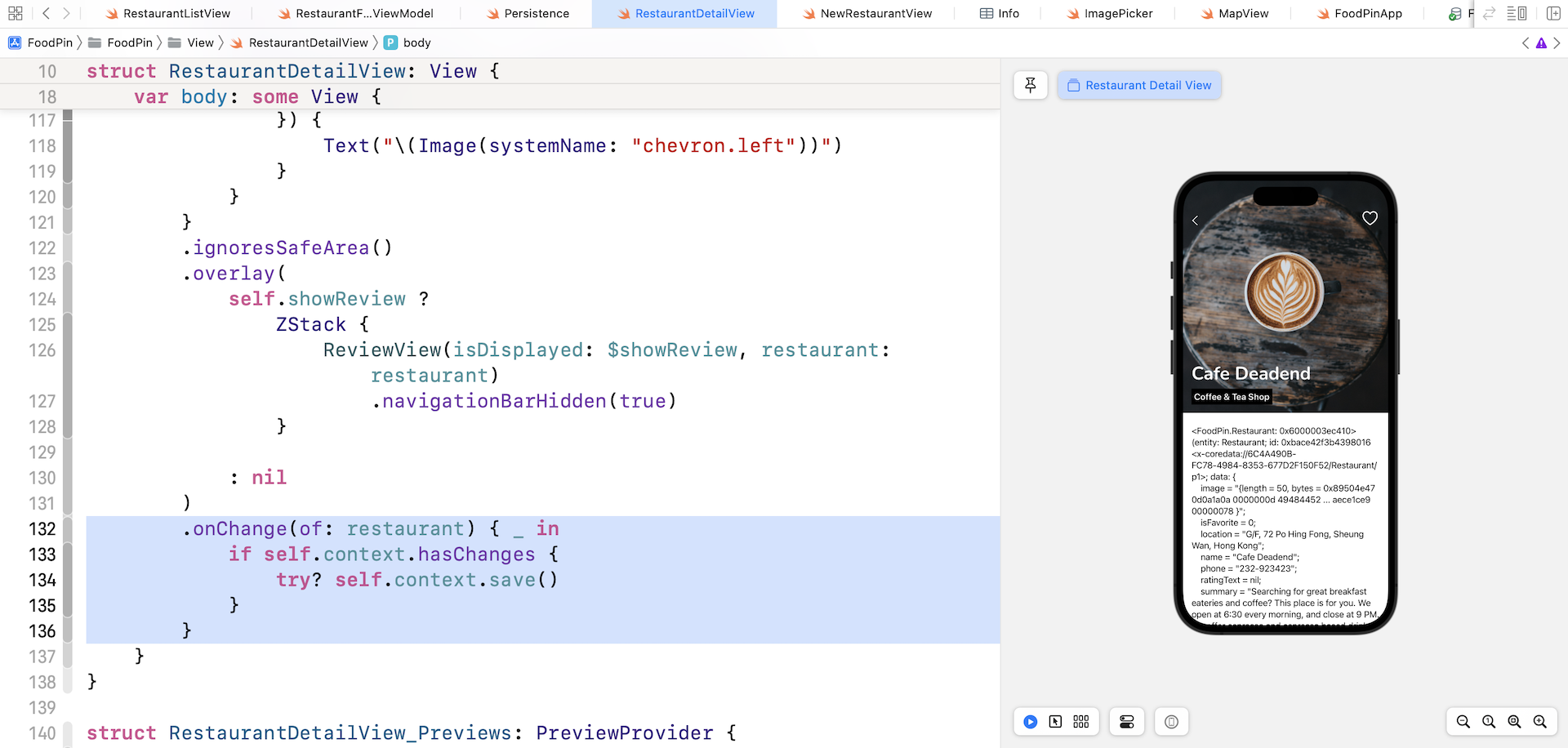
As an exercise, you are required to make a couple of changes to the app. First, do you notice that there is a bug for the description field of the restaurant detail screen. It now shows a weird message. Take a look at figure 19-12 and you should understand what I mean. Your first task is to find out the root cause of the issue and fix it.
Secondly, the Heart button in the detail view doesn't work yet. Your task is to make it functional and save the change to the database using Core Data. The hint is to add the Heart icon as a trailing navigation bar item.
Summary
Congratulate yourself on making an app using Core Data. At this point, you should know how to retrieve and manage data in a persistent data store. Core Data is a powerful framework for working with persistent data especially for those who do not have any database knowledge. I hope you now understand how to integrate Core Data in a SwiftUI project and know how to perform all basic CRUD (create, read, update & delete) operations. The introduction of the @FetchRequest property wrapper and the injection of the managed object context have made it very easy to manage data in a persistent store.
For reference, you can download the complete Xcode from http://www.appcoda.com/resources/swift57/swiftui-foodpin-coredata.zip.
Are you ready to further improve the app? I hope you're still with me. Let's move on and take a look at how to add a search bar.